AI Penghapus Objek
Hapus objek, orang, teks, dan noda yang tidak diinginkan dari foto Anda dalam hitungan detik
Pilih Gambar
Seret dan lepas atau klik untuk mengunggah
JPG, PNG, WEBP • Maks 10MB
atau coba contoh
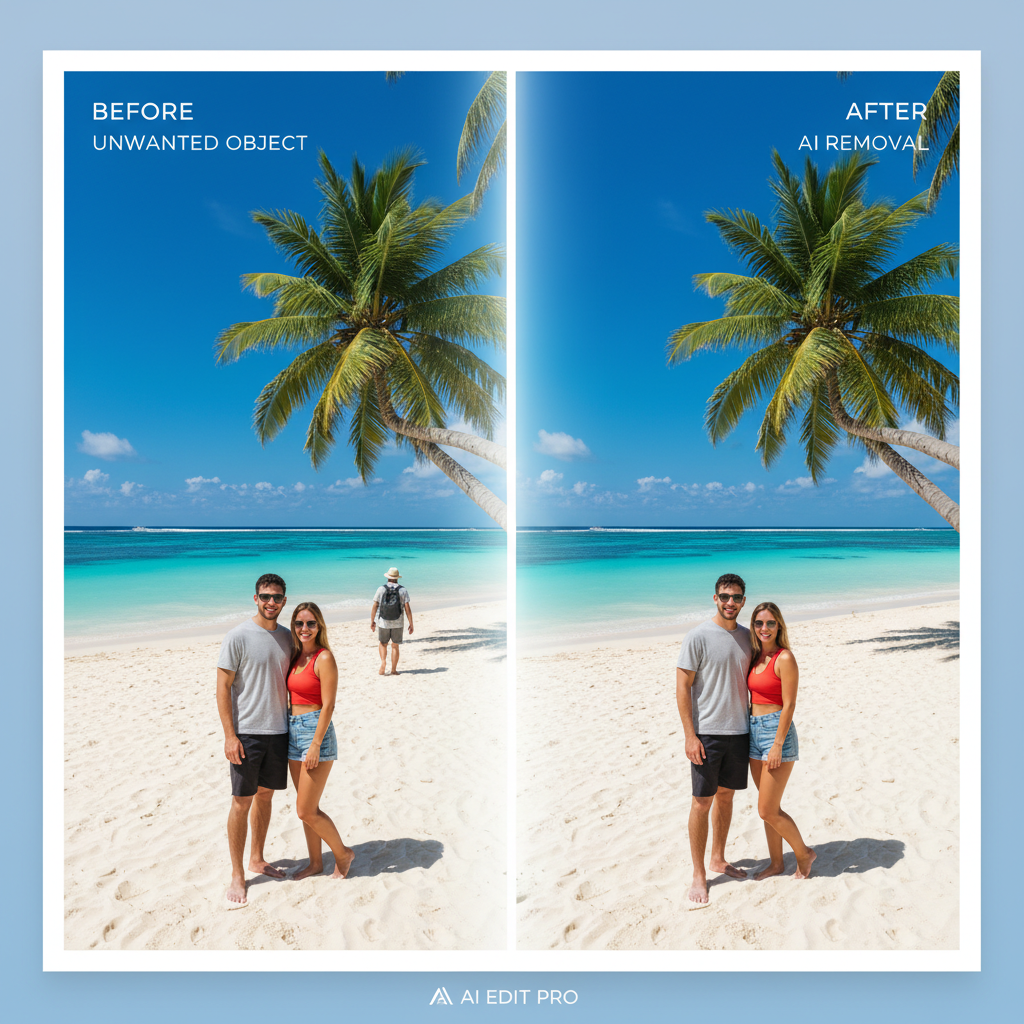
Hapus objek dalam hitungan detik dengan presisi AI
Ucapkan selamat tinggal pada pengeditan manual yang membosankan di Photoshop. Model AI LaMa canggih kami secara cerdas mengidentifikasi dan menghapus objek yang tidak diinginkan dari foto Anda hanya dalam hitungan detik. Baik itu pengacau foto di bidikan liburan, elemen yang mengganggu di foto produk, atau teks dan watermark yang tidak diinginkan—AI menangani semuanya dengan presisi tingkat profesional, tanpa meninggalkan jejak.
Coba gratis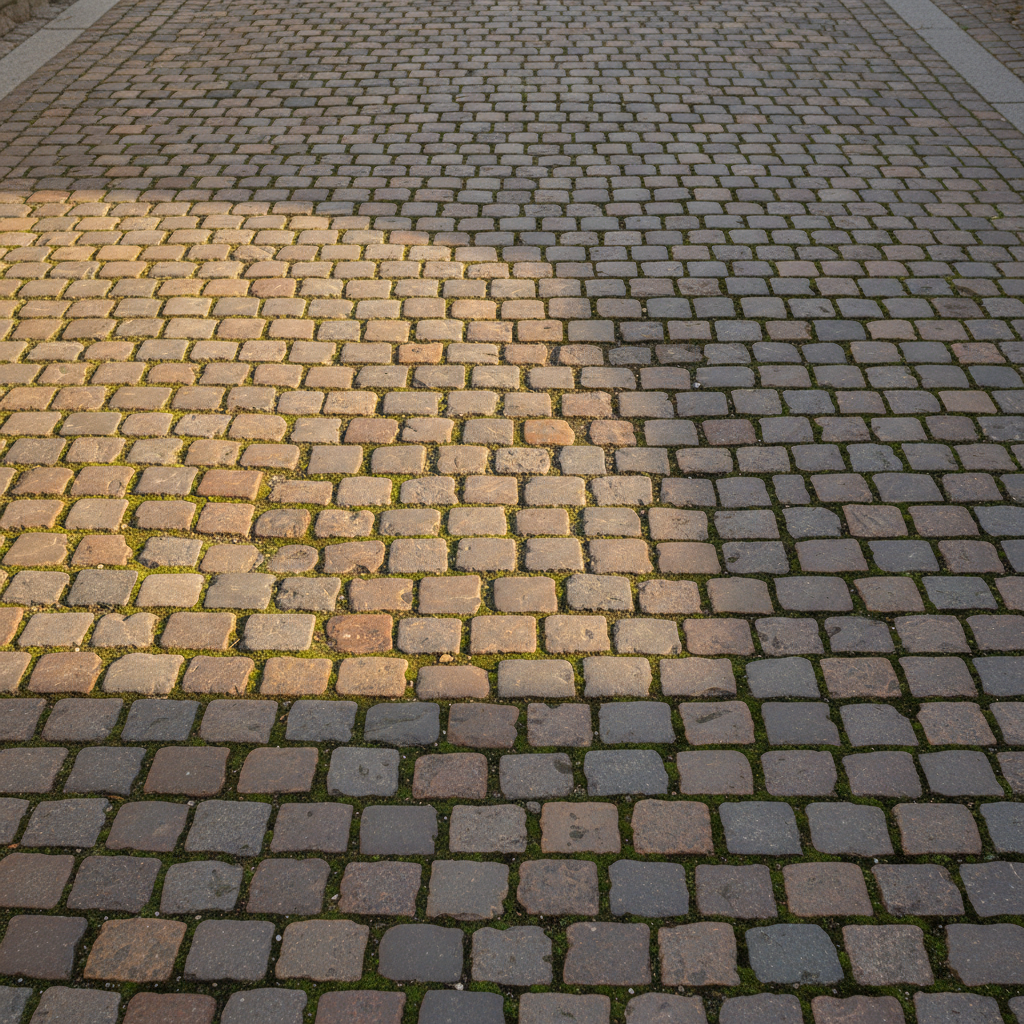
Rekonstruksi latar belakang alami
Yang membedakan AI kami adalah kemampuannya untuk mengisi area yang dihapus dengan mulus. Menggunakan teknologi inpainting canggih, AI menganalisis piksel di sekitarnya dan secara cerdas merekonstruksi latar belakang dengan tekstur, pola, dan warna yang cocok. Hasilnya terlihat sangat alami sehingga tidak ada yang tahu ada sesuatu yang pernah ada di sana.
Lihat keajaibannya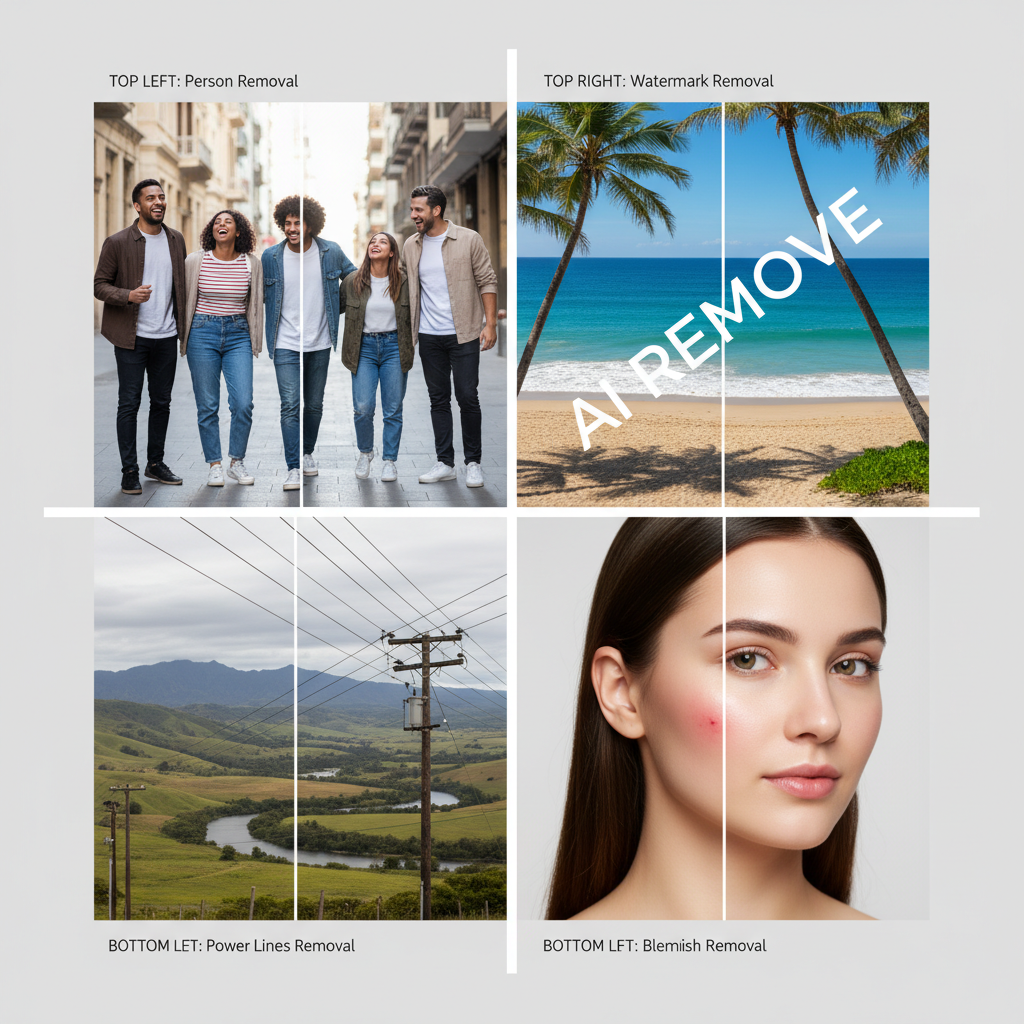
Hapus apa saja dari foto apa pun
Penghapus objek kami menangani hampir semua tugas penghapusan dengan presisi. Cukup kuas apa yang ingin Anda hilangkan, dan saksikan menghilang.
- Orang dan pengacau foto dari foto perjalanan
- Watermark dan logo dari gambar
- Kabel listrik dan kabel dari pemandangan
- Noda kulit dan ketidaksempurnaan dari potret
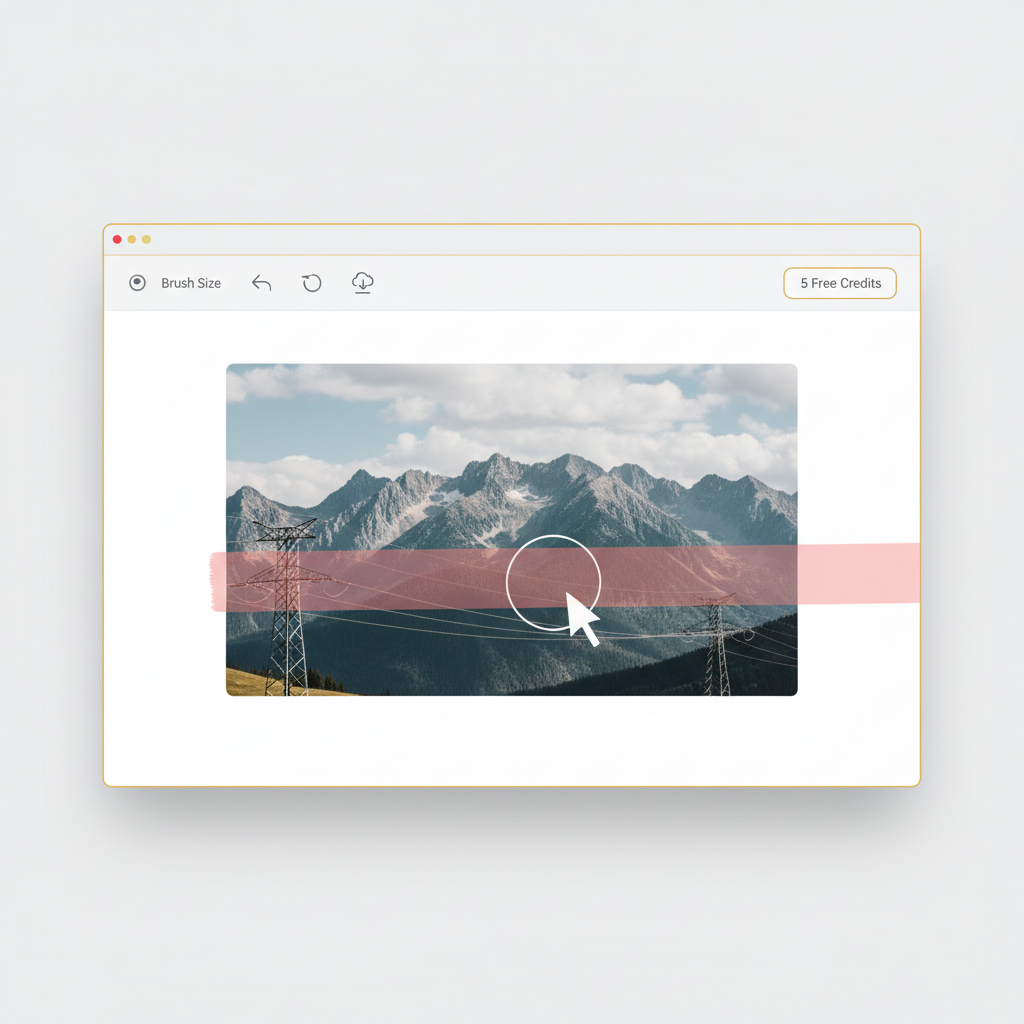
Hasil profesional, gratis untuk memulai
Tidak perlu software mahal. Tidak ada kurva belajar yang rumit. Cukup unggah gambar Anda, kuas objek yang ingin Anda hapus, dan biarkan AI kami bekerja. Daftar gratis dan dapatkan 5 kredit untuk merasakan hasilnya. Setiap penghapusan objek hanya menggunakan 2 kredit. Ketika Anda menyukai apa yang Anda lihat, upgrade untuk akses tak terbatas.
Mulai gratisCara Menghapus Objek dalam 3 Langkah
Hapus objek yang tidak diinginkan dari foto apa pun dalam hitungan detik
Unggah Gambar
Unggah foto Anda. Mendukung JPG, PNG, dan WEBP hingga 10MB.
Kuas Objek
Gunakan alat kuas untuk menandai objek yang ingin Anda hapus.
Unduh Hasil
AI menghapus objek yang ditandai dan mengisi area secara alami. Unduh foto bersih Anda.
Format yang Didukung
Ukuran file maksimum: 10MB
Kasus Penggunaan Penghapusan Objek
Dari pembersihan foto hingga pengeditan profesional, AI kami menangani semuanya
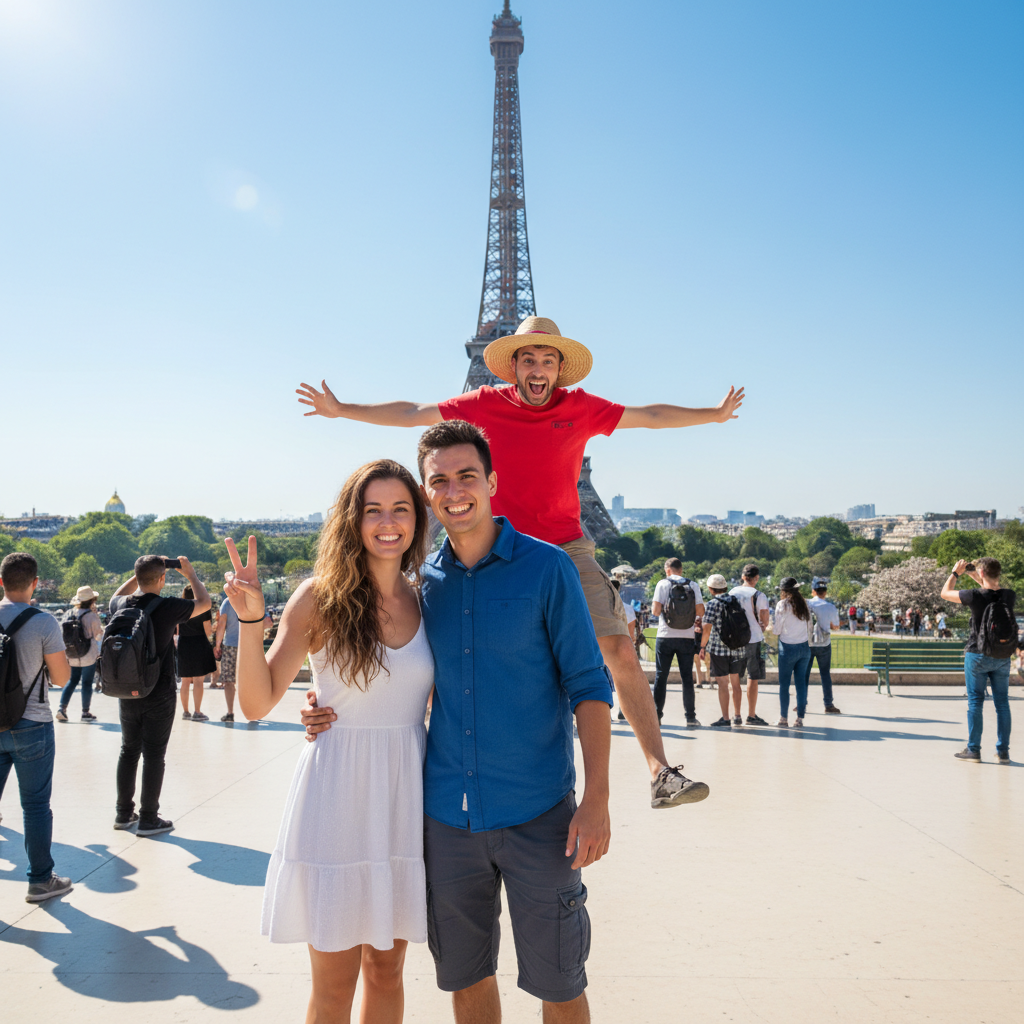
Hapus Pengacau Foto
Dengan mudah hapus orang yang tidak diinginkan dari foto liburan dan foto grup Anda.
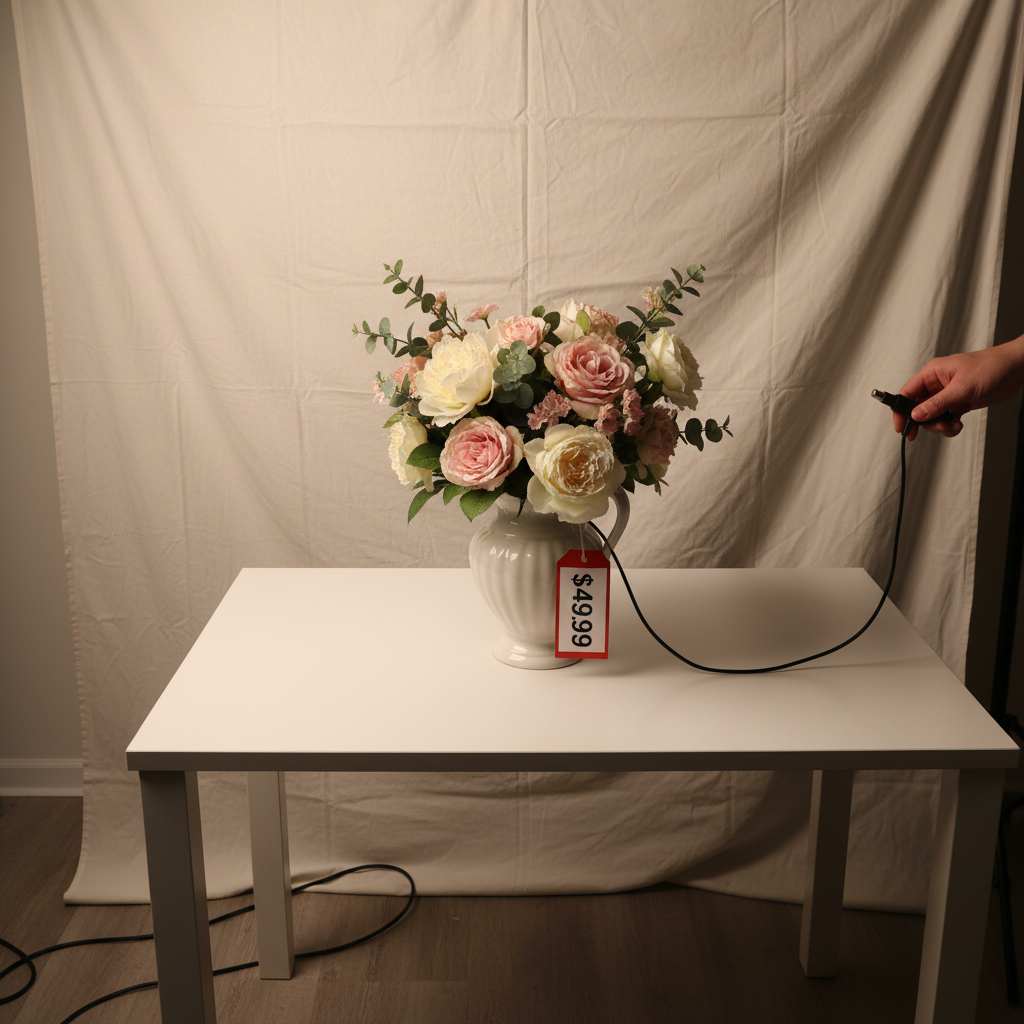
Bersihkan Foto Produk
Hapus elemen yang mengganggu dari gambar produk untuk listing e-commerce.
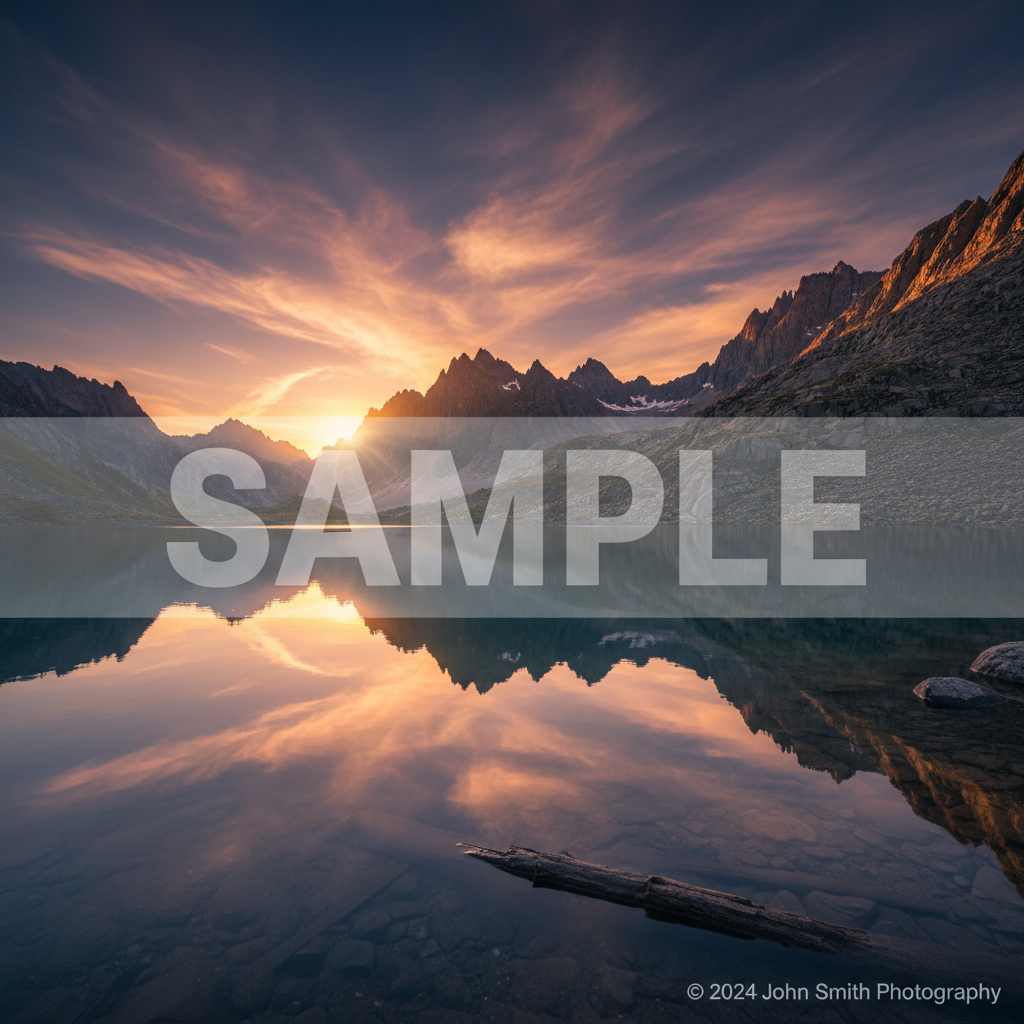
Hapus Watermark
Hapus watermark dan logo dari gambar yang Anda miliki haknya.
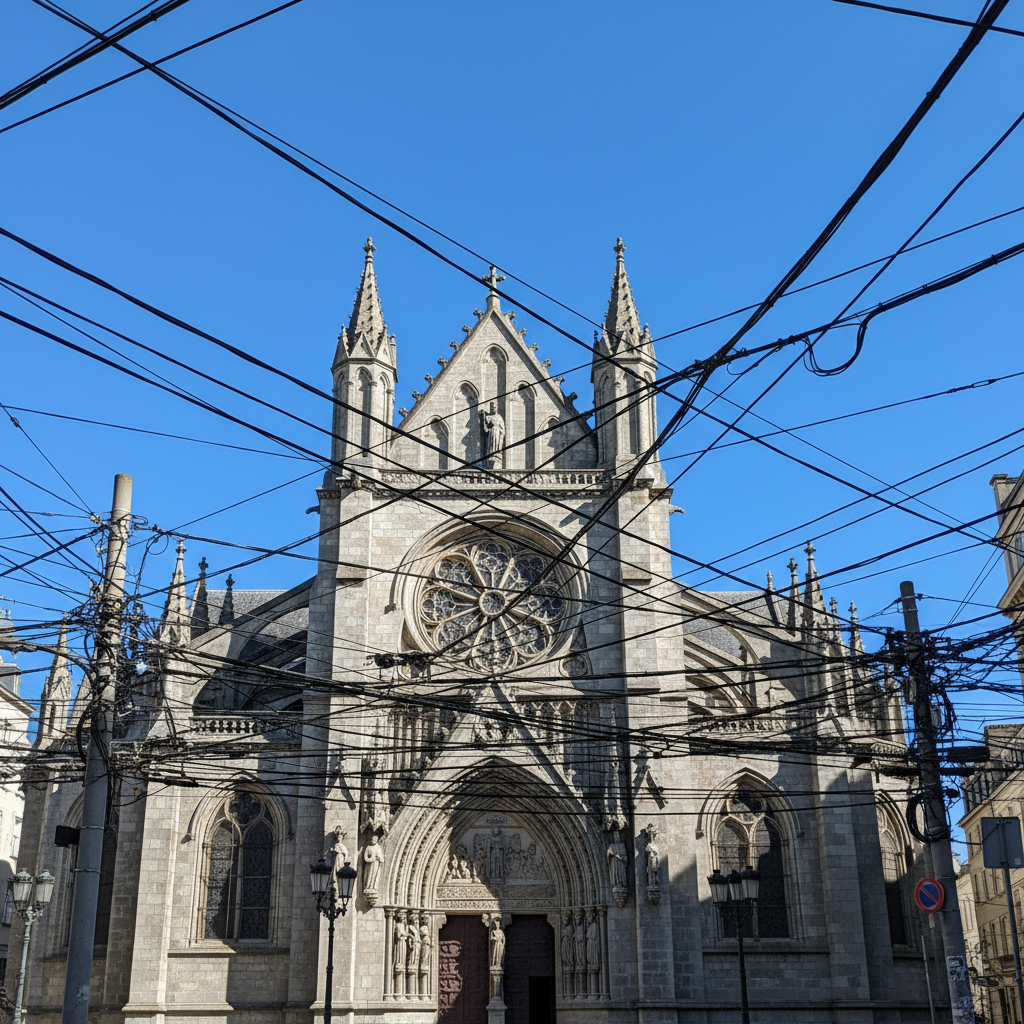
Hapus Kabel Listrik
Bersihkan foto lanskap dan arsitektur dengan menghapus kabel dan kawat.
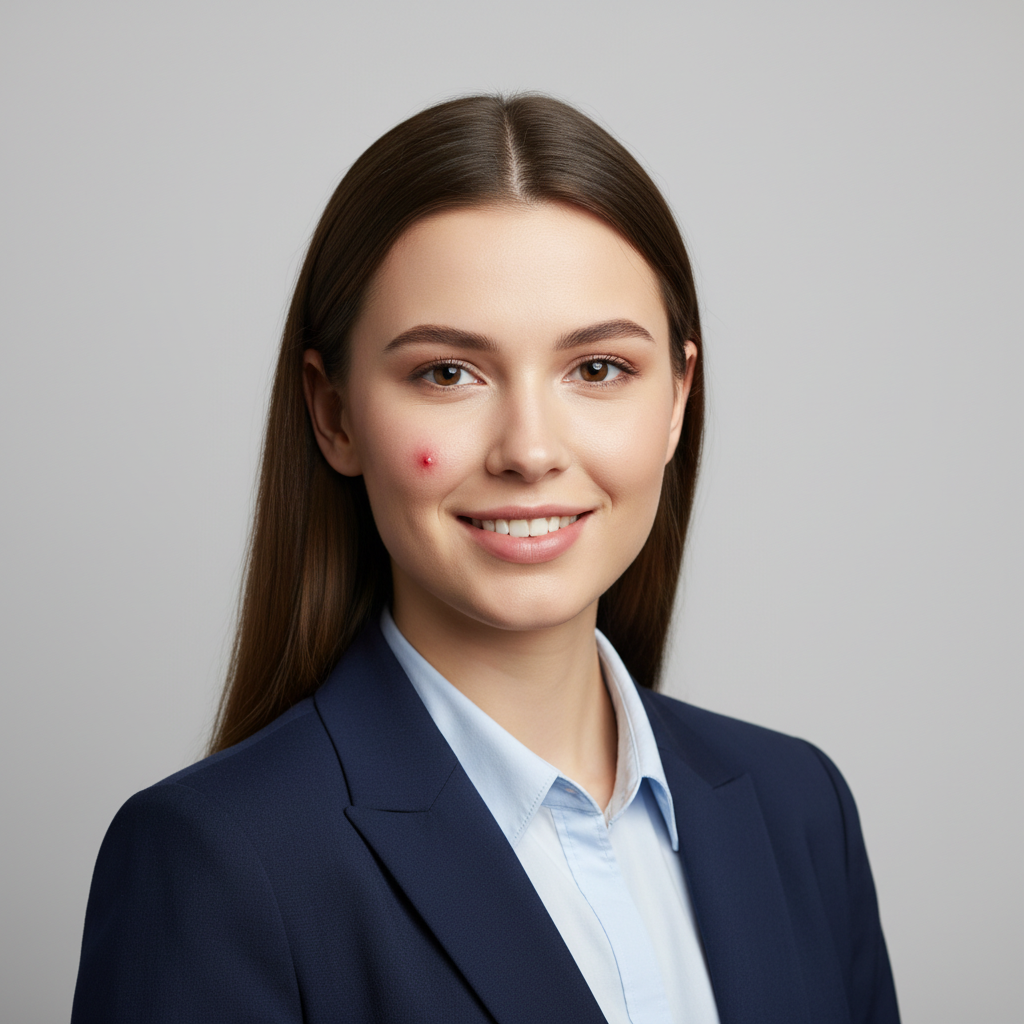
Bersihkan Noda Kulit
Perbaiki potret dengan menghapus noda sementara dan ketidaksempurnaan.
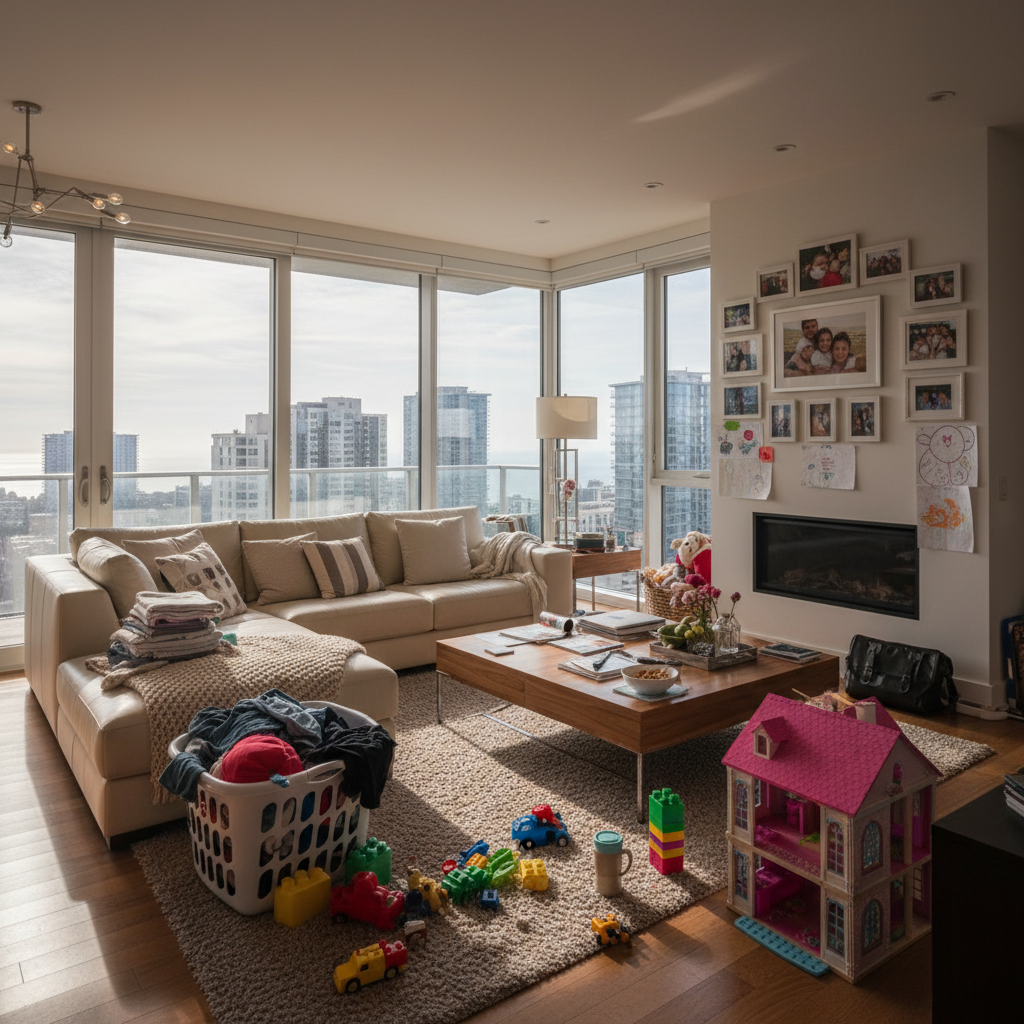
Rapikan Real Estate
Hapus barang pribadi dan kekacauan dari foto properti untuk listing.
How Nano Banana 2 Compares to Other Object Removal Tools
See how our AI object remover stacks up against the most popular alternatives
Several AI-powered object removal tools exist, each with different approaches and limitations. Here is how Nano Banana 2 Object Remover compares to the most popular options available today.
Nano Banana 2 vs Cleanup.pictures
Cleanup.pictures offers a simple drag-to-remove interface and produces decent results on small objects. However, it limits free users to low-resolution output (720p) and requires a Pro subscription ($5/month) for full-resolution downloads. Nano Banana 2 delivers full-resolution results with a flexible credit system — no monthly commitment required. Both tools handle simple removals well, but Nano Banana 2 uses the advanced LaMa inpainting model for more natural background reconstruction on complex scenes.
Nano Banana 2 vs Adobe Generative Remove
Adobe's Generative Remove (in Photoshop and Firefly) uses generative AI to fill removed areas, producing impressive results for complex scenes. However, it requires an Adobe Creative Cloud subscription ($22.99/month for Photoshop) and works best within the full Photoshop environment. Nano Banana 2 provides comparable AI-powered object removal through a simple browser-based interface at a fraction of the cost, making professional results accessible to anyone without expensive software.
Nano Banana 2 vs Inpaint Online
Inpaint Online is one of the earliest object removal tools and offers basic inpainting capabilities for free. While it handles simple removals on uniform backgrounds, it struggles with complex textures and detailed areas. Nano Banana 2 uses next-generation AI inpainting that intelligently reconstructs backgrounds with matching textures, lighting, and perspective — producing results that look natural even in challenging scenarios like removing people from busy street scenes.
Nano Banana 2 Object Remover combines the power of advanced LaMa AI with a simple brush-based interface. No subscriptions, no software downloads — just upload, brush, and download your clean image at full resolution.
Tips & Best Practices for Object Removal
Get the cleanest results from our AI object remover with these expert tips
Match Brush Size to the Object
Use a larger brush for big objects and a smaller brush for fine details. Matching the brush size to the object helps the AI understand exactly what to remove and what to preserve, resulting in cleaner edges.
Zoom In for Precision
Zoom into the area you want to edit before brushing. This gives you much better control over exactly which pixels are marked for removal, especially important for objects near important elements you want to keep.
Cover the Entire Object
Make sure your brush strokes fully cover the entire object you want to remove, including its shadow. Partial coverage can leave visible remnants. It is better to slightly over-brush than to miss parts of the object.
Start with Small Objects
If you are new to object removal, start with smaller objects like blemishes, power lines, or small distracting elements. This helps you get a feel for how the AI works before tackling larger, more complex removals.
Try Multiple Passes for Complex Removals
For large or complex objects, consider removing them in stages rather than all at once. Remove part of the object, download the result, then re-upload and remove the rest. This often produces more natural results.
Clean Surrounding Area Matters
The AI uses surrounding pixels to fill the removed area. If the area around the object is clean and detailed, the reconstruction will be more convincing. Avoid removing objects that take up most of the image.
Use High-Resolution Source Images
Higher resolution images give the AI more pixel data to work with, resulting in better background reconstruction. The AI can pick up more texture and pattern detail from high-res sources to fill the gap naturally.
Review at Full Size Before Downloading
Always zoom in to inspect the removal area at full resolution before downloading. Check for any artifacts, color mismatches, or unnatural patterns. A quick review ensures professional-quality results every time.
Clean up your product photos, then place them in professional scenes — no photographer needed.
Explore More AI Tools
Discover our complete suite of AI photo editing tools
FAQ Penghapus Objek
Semua yang perlu Anda ketahui tentang menghapus objek dari foto
Punya pertanyaan lain? Hubungi Kami
Siap Membersihkan Foto Anda?
Hapus objek yang tidak diinginkan dari foto apa pun dalam hitungan detik. Tidak perlu keterampilan desain. Gratis untuk memulai!
Mulai Menghapus ObjekTry our free AI image generator for text-to-image, editing, and more.