Perbaiki Gambar Blur - Hapus Blur dengan AI
Ubah foto blur dan tidak fokus menjadi gambar tajam dan jernih dalam hitungan detik. Gratis untuk memulai, tidak perlu keahlian desain.
Pilih Gambar Blur
Seret dan lepas atau klik untuk mengunggah
JPG, PNG, WEBP • Maks 10MB
atau coba contoh
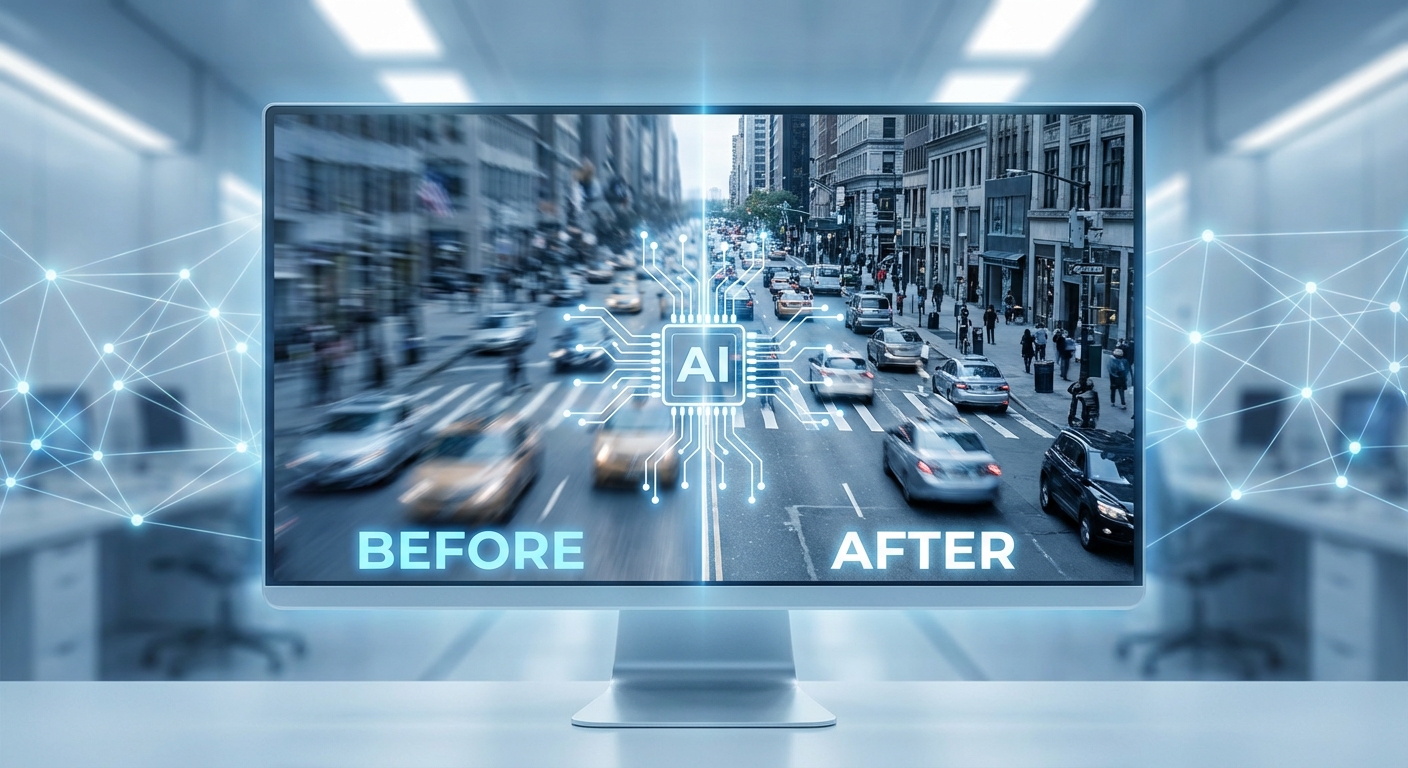
Pulihkan kejernihan dengan deblurring bertenaga AI
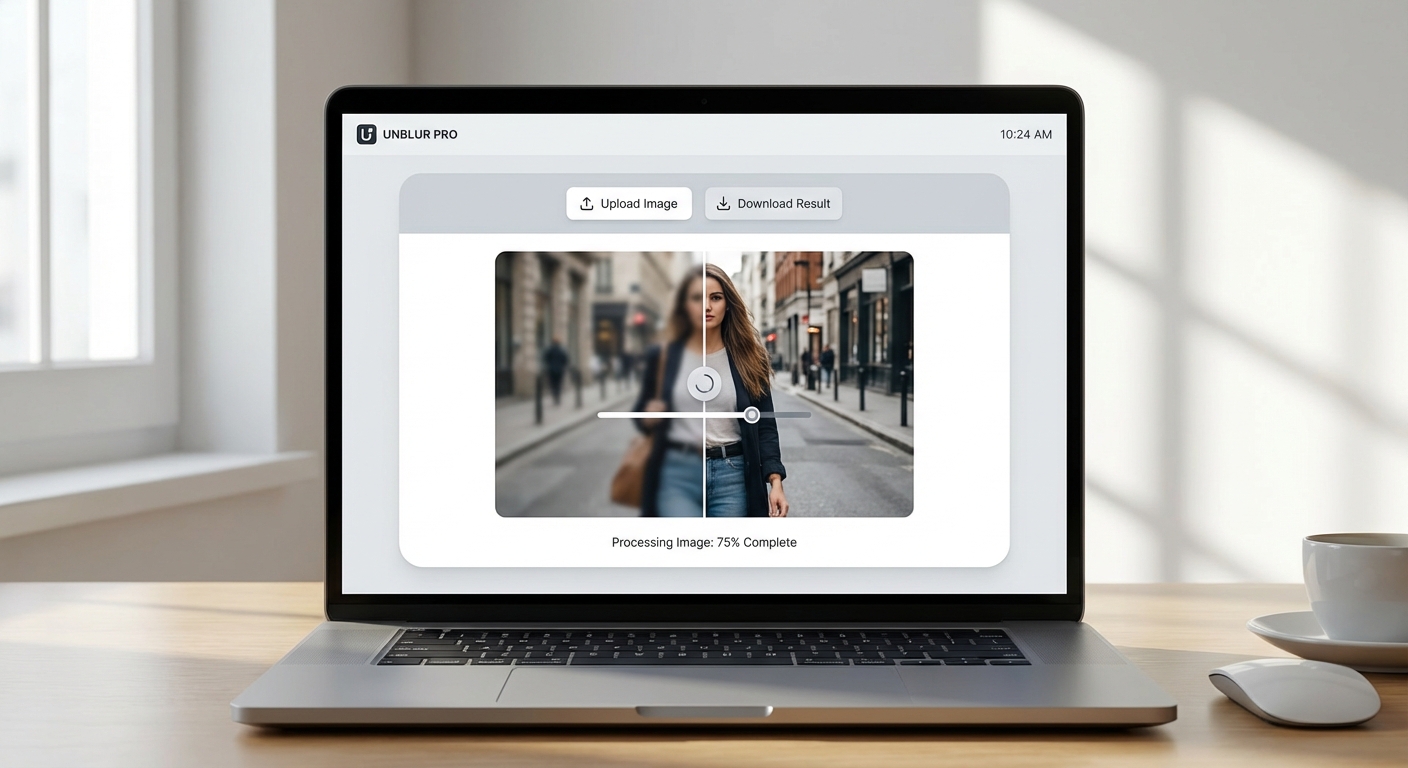
AI canggih kami menganalisis pola blur dan merekonstruksi detail tajam yang hilang. Menggunakan teknologi Real-ESRGAN yang dilatih pada jutaan gambar, kami membalikkan motion blur, masalah fokus, dan goyangan kamera. Berbeda dengan filter penajaman sederhana, AI kami secara cerdas membangun kembali apa yang tersembunyi—mengembalikan kejernihan yang seharusnya dimiliki foto Anda.
Unblur foto Anda gratis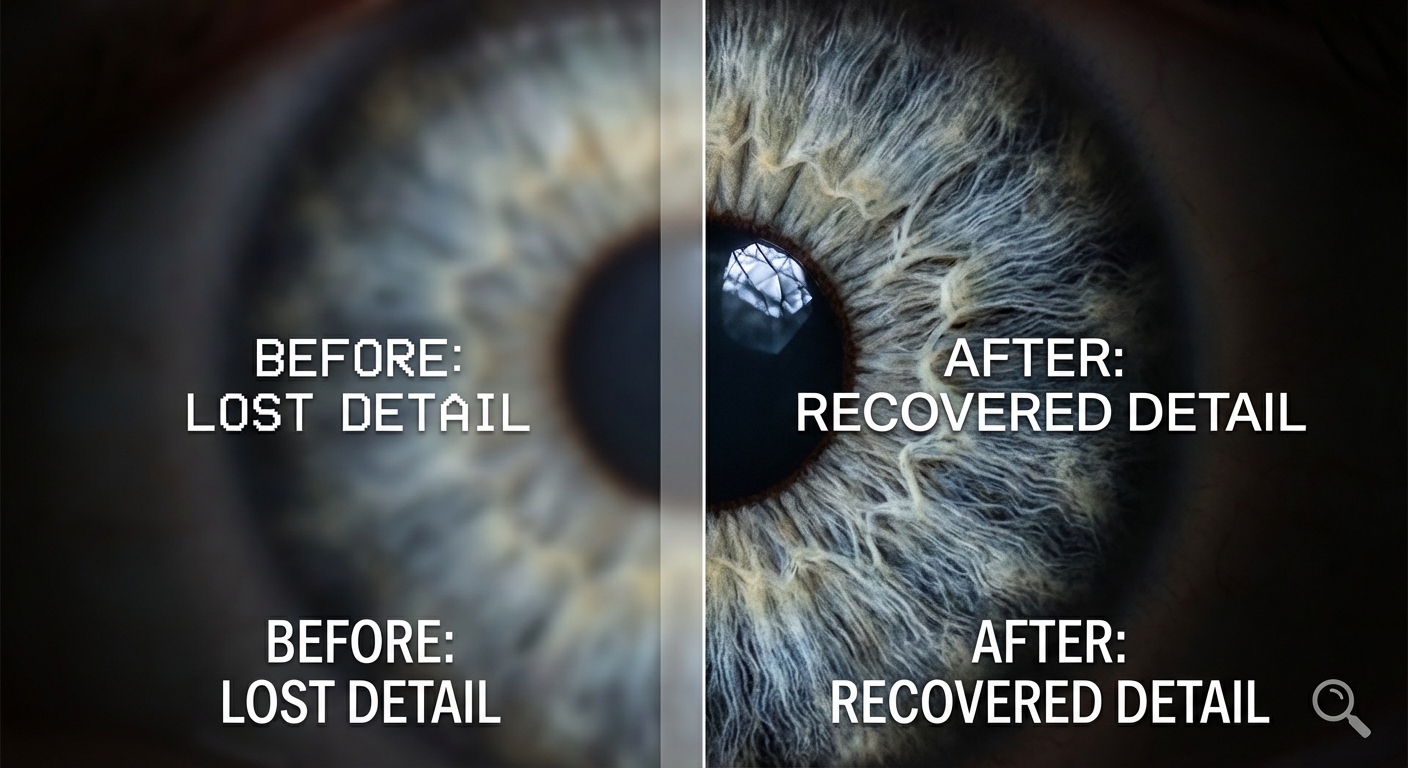
Pulihkan detail yang Anda kira hilang selamanya
Foto blur sering menyembunyikan detail penting—wajah, teks, tekstur halus. AI kami tidak hanya mempertajam tepi; ia secara cerdas merekonstruksi apa yang hilang. Dari foto keluarga lama yang pudar hingga dokumen penting, pulihkan kejernihan dan detail yang paling penting. AI bekerja piksel demi piksel untuk mengembalikan ketajaman alami tanpa menciptakan artefak buatan.
Coba sekarang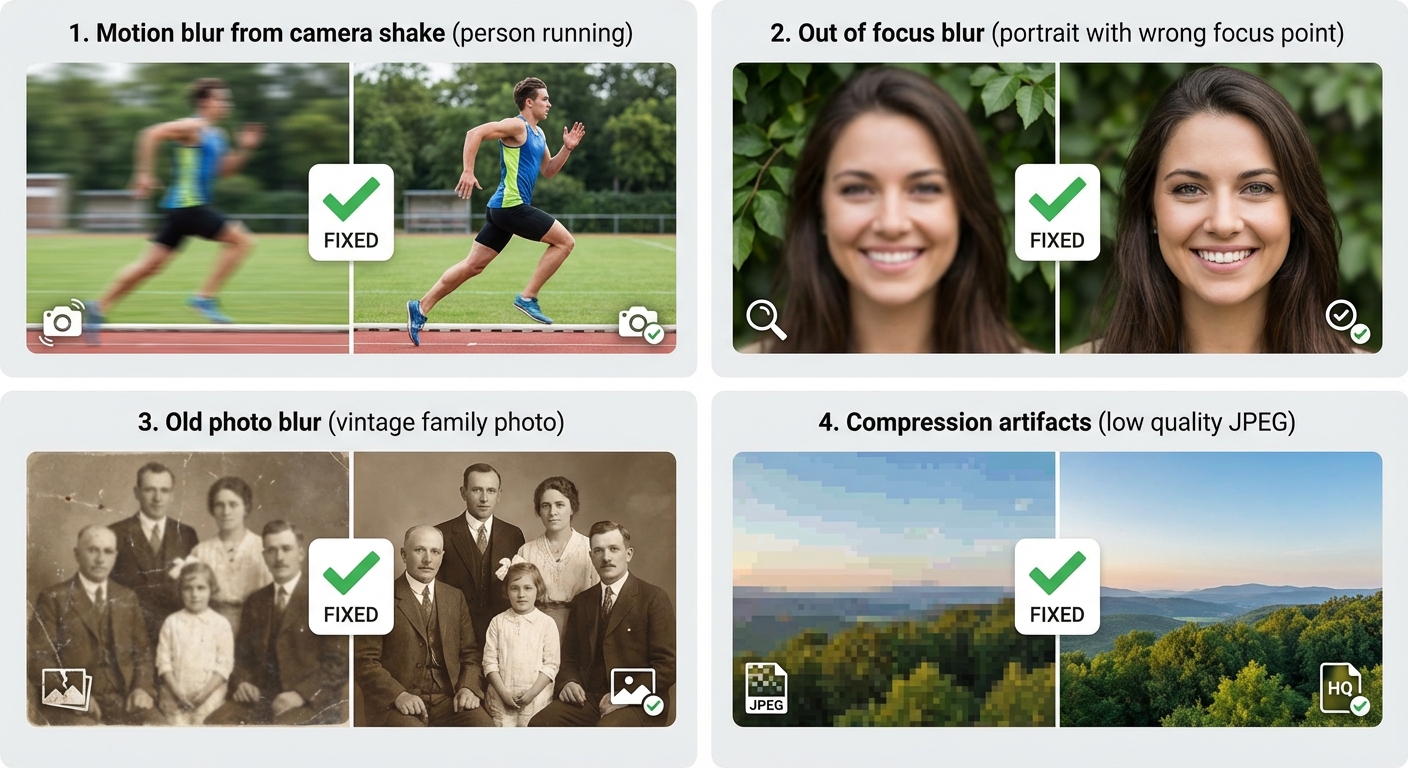
Berfungsi untuk semua jenis blur
Berbagai jenis blur memerlukan solusi berbeda. AI kami dilatih untuk menangani semuanya dengan teknik pemrosesan khusus:
- Motion blur dari goyangan kamera atau subjek bergerak
- Blur tidak fokus dari autofocus yang meleset
- Blur foto lama dari cetakan atau scan yang terdegradasi
- Blur kompresi dari artefak JPEG berat
Hasil profesional, gratis untuk mulai
Tidak perlu software mahal. Tidak ada kurva belajar yang rumit. Cukup unggah foto blur Anda dan biarkan AI kami bekerja. Daftar gratis dan dapatkan 5 kredit untuk merasakan keajaibannya. Setiap unblur menggunakan 2 kredit. Ketika Anda menyukai hasilnya (dan Anda pasti akan), upgrade untuk lebih banyak kredit dan fitur.
Mulai gratisCara Unblur Foto dalam 3 Langkah
Perbaiki foto blur apa pun dengan alat bertenaga AI kami
Unggah Foto Blur
Unggah gambar blur Anda dalam format JPG, PNG, atau WebP. Mendukung gambar hingga 10MB.
Pemrosesan AI
AI kami menganalisis jenis blur dan merekonstruksi detail tajam secara cerdas dalam sekitar 12 detik.
Unduh Gambar Jernih
Unduh foto tajam dan jernih Anda dalam format PNG atau JPG. Siap digunakan!
Sempurna untuk Foto Blur Apa Pun
Dari motion blur hingga foto lama, AI kami menangani semua jenis blur
Motion Blur
Perbaiki foto yang rusak karena guncangan kamera atau subjek bergerak.
Tidak Fokus
Pertajam foto di mana kamera tidak fokus. Buat subjek menjadi jernih.
Foto Lama
Pulihkan kejernihan foto vintage dan keluarga lama. Simpan kenangan dalam detail tajam.
Blur Kamera Ponsel
Perbaiki foto ponsel blur yang disebabkan oleh cahaya rendah atau jepretan cepat.
Dokumen Scan
Buat dokumen scan yang blur menjadi dapat dibaca. Sempurna untuk struk dan kertas lama.
Screenshot
Tingkatkan screenshot blur atau pixelated untuk presentasi dan tutorial.
How Nano Banana 2 Compares to Other Image Unblurring Tools
See how our AI image sharpener compares to popular alternatives
Fixing blurry photos is a common need, and several tools offer AI-powered solutions. Here is how Nano Banana 2 Unblur Image compares to the most popular alternatives for image sharpening and restoration.
Nano Banana 2 vs Remini
Remini is a popular mobile app specializing in face enhancement and old photo restoration. It excels at faces but is less effective on landscapes, products, or general images. Remini's free tier adds watermarks and limits daily uses, while the Pro plan costs $9.99/month. Nano Banana 2 works equally well on all image types — faces, products, landscapes, and text — with no watermarks on any plan and a flexible credit system.
Nano Banana 2 vs Topaz Sharpen AI
Topaz Sharpen AI is a professional desktop application ($79.99 one-time) that offers advanced sharpening with motion blur, out-of-focus, and softness correction modes. It produces excellent results but requires downloading software and has a steep learning curve with many parameters to adjust. Nano Banana 2 delivers comparable sharpening quality through a simple web interface — upload and download, no installation or configuration needed.
Nano Banana 2 vs VanceAI
VanceAI offers AI-powered image sharpening alongside other enhancement tools. Its free tier is limited to 3 credits per month and produces lower-resolution output. Premium plans start at $9.99/month. Nano Banana 2 provides generous free credits to start and offers full-resolution output from day one. Both tools use AI-based sharpening, but Nano Banana 2 combines unblurring with detail enhancement in a single step for better overall results.
Nano Banana 2 Unblur Image uses advanced AI to restore sharpness and detail to any blurry photo. No downloads, no watermarks, no subscriptions — just clear, sharp images in seconds.
Tips & Best Practices for Unblurring Images
Get the sharpest results from our AI image sharpener with these expert tips
Start with the Best Available Source
Even though our AI can enhance blurry images, starting with the highest quality version available gives better results. If you have multiple copies of a photo, use the one with the largest file size and resolution as your starting point.
Understand Your Blur Type
Different types of blur respond differently to AI sharpening. Motion blur (camera shake) and slight out-of-focus blur recover best. Heavy gaussian blur or intentional artistic blur may not fully resolve. Knowing what caused the blur helps set realistic expectations.
Prevent Blur at the Source
The best fix for blurry photos is preventing them. Use a tripod, brace against a wall, or enable optical image stabilization. In low light, increase ISO or use a wider aperture rather than slower shutter speeds. Prevention is always better than correction.
Well-Lit Photos Recover Better
Blurry photos taken in good lighting conditions recover much better than dark, blurry photos. The AI has more detail to work with when the image has adequate exposure. If possible, brighten the image slightly before running the unblur process.
Crop Before Processing
If only part of your image is blurry, or if you only need a specific area to be sharp, crop the image first and process just that portion. This focuses the AI's enhancement on the area that matters and can produce sharper results.
Consider Multiple Enhancement Passes
For severely blurry images, running the enhancement twice can improve results. Process the image once, download the result, and then process it again. The second pass often recovers additional detail that the first pass revealed.
Compare Before and After Carefully
Always compare the enhanced image with the original at 100% zoom. Check that important details like text, faces, and edges have been genuinely sharpened without introducing artifacts. Sometimes AI sharpening can create unnatural-looking edges.
Always Keep Your Original File
Never replace your original blurry photo. Keep it as a backup in case you want to re-process it with different settings later. AI models improve over time, and future processing may produce even better results from the same source image.
Explore More AI Tools
Discover our complete suite of AI photo editing tools
Pertanyaan yang Sering Diajukan
Semua yang perlu Anda ketahui tentang alat unblur AI kami
Siap Memperbaiki Foto Blur Anda?
Mulai gratis. Tidak perlu kartu kredit. Daftar dan dapatkan 5 kredit gratis secara instan.
Built by NanoBanana2 — explore all free AI image tools.