Убрать Размытие - Исправить Размытые Фото с ИИ
Превратите размытые и расфокусированные фотографии в чёткие изображения за секунды. Бесплатный старт, навыки дизайна не требуются.
Выбрать Размытое Изображение
Перетащите или нажмите для загрузки
JPG, PNG, WEBP • Макс. 10MB
или попробуйте пример
Верните чёткость с помощью ИИ-удаления размытия
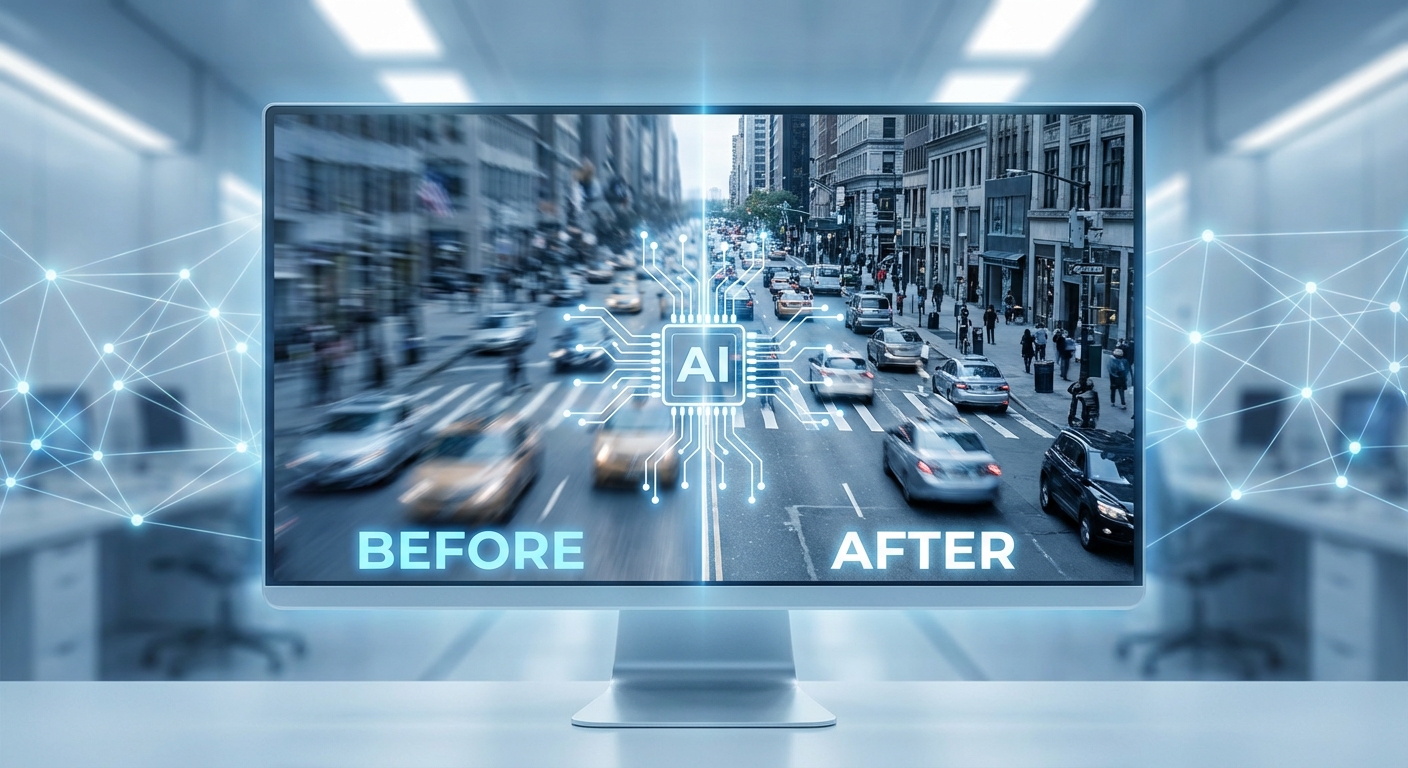
Наш продвинутый ИИ анализирует паттерны размытия и восстанавливает потерянные чёткие детали. Используя технологию Real-ESRGAN, обученную на миллионах изображений, мы устраняем смазанность движения, проблемы фокусировки и дрожание камеры. В отличие от простых фильтров повышения резкости, наш ИИ интеллектуально восстанавливает скрытые элементы — возвращая вашим фотографиям заслуженную чёткость.
Убрать размытие бесплатно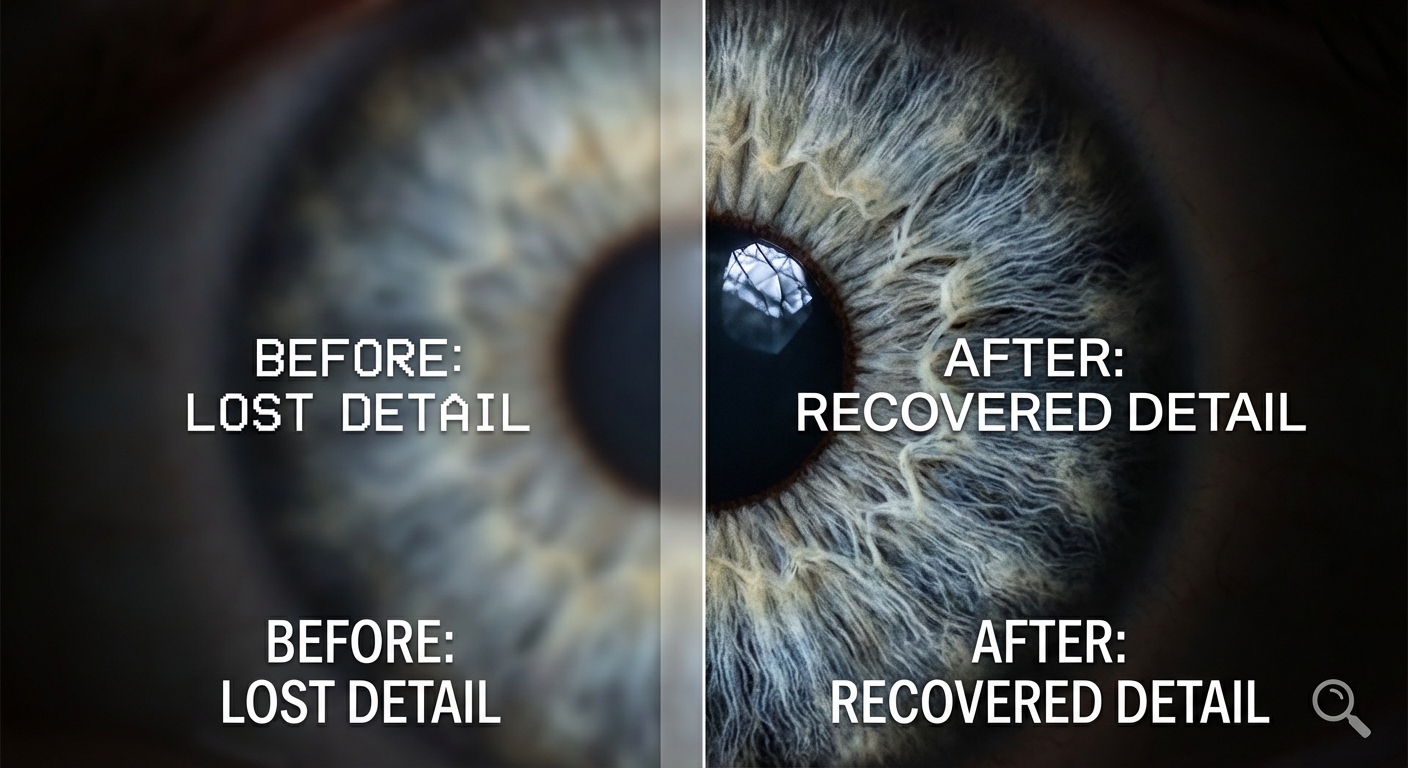
Восстановите детали, которые считали навсегда утерянными
Размытые фотографии часто скрывают важные детали — лица, текст, тонкие текстуры. Наш ИИ не просто повышает резкость краёв; он интеллектуально восстанавливает утраченное. От выцветших семейных фотографий до важных документов — восстановите чёткость и детали, которые важны больше всего. ИИ работает пиксель за пикселем, возвращая естественную резкость без создания искусственных артефактов.
Попробовать сейчас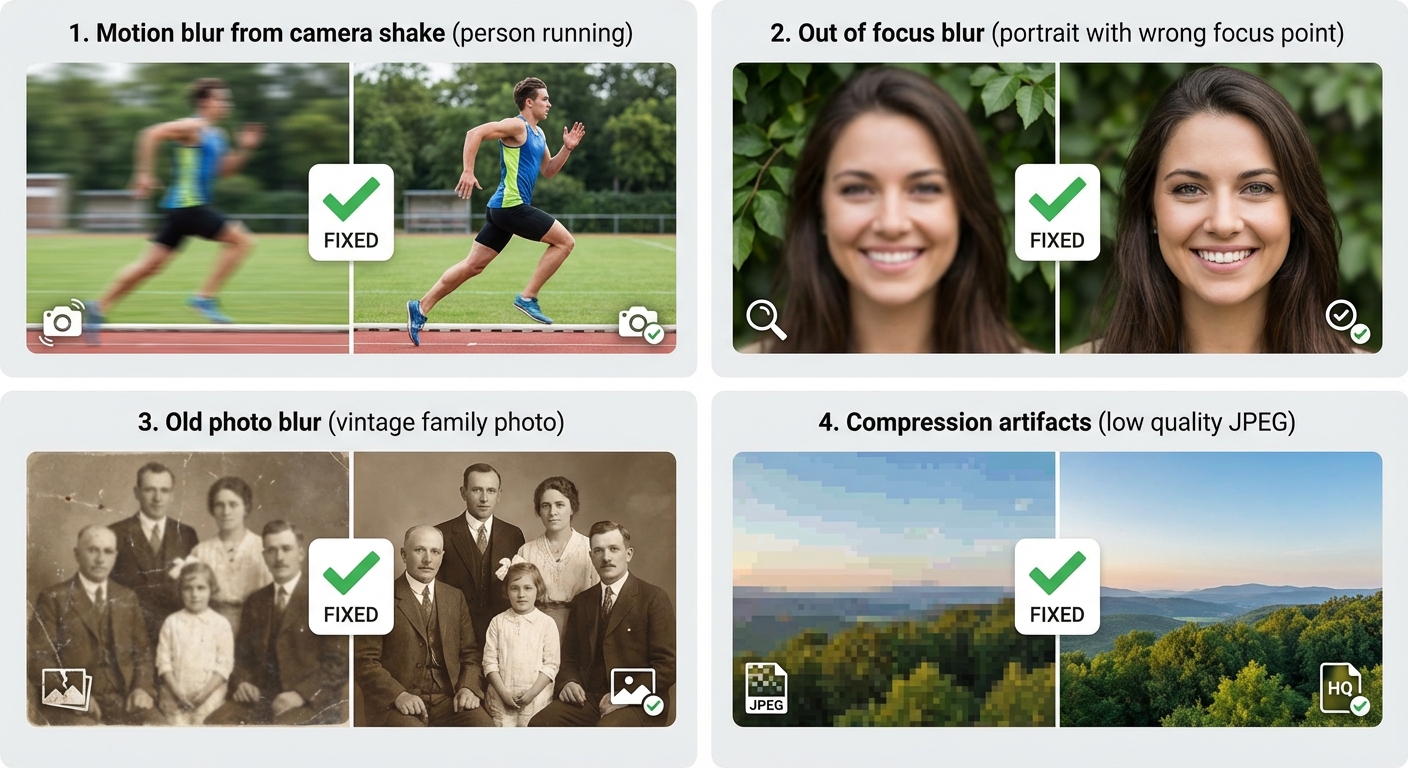
Работает со всеми типами размытия
Разные типы размытия требуют разных решений. Наш ИИ обучен справляться со всеми с помощью специализированных техник обработки:
- Смазанность движения от дрожания камеры или движущихся объектов
- Размытие из-за неправильного автофокуса
- Размытие старых фотографий от повреждённых отпечатков или сканов
- Компрессионное размытие от сильных JPEG-артефактов
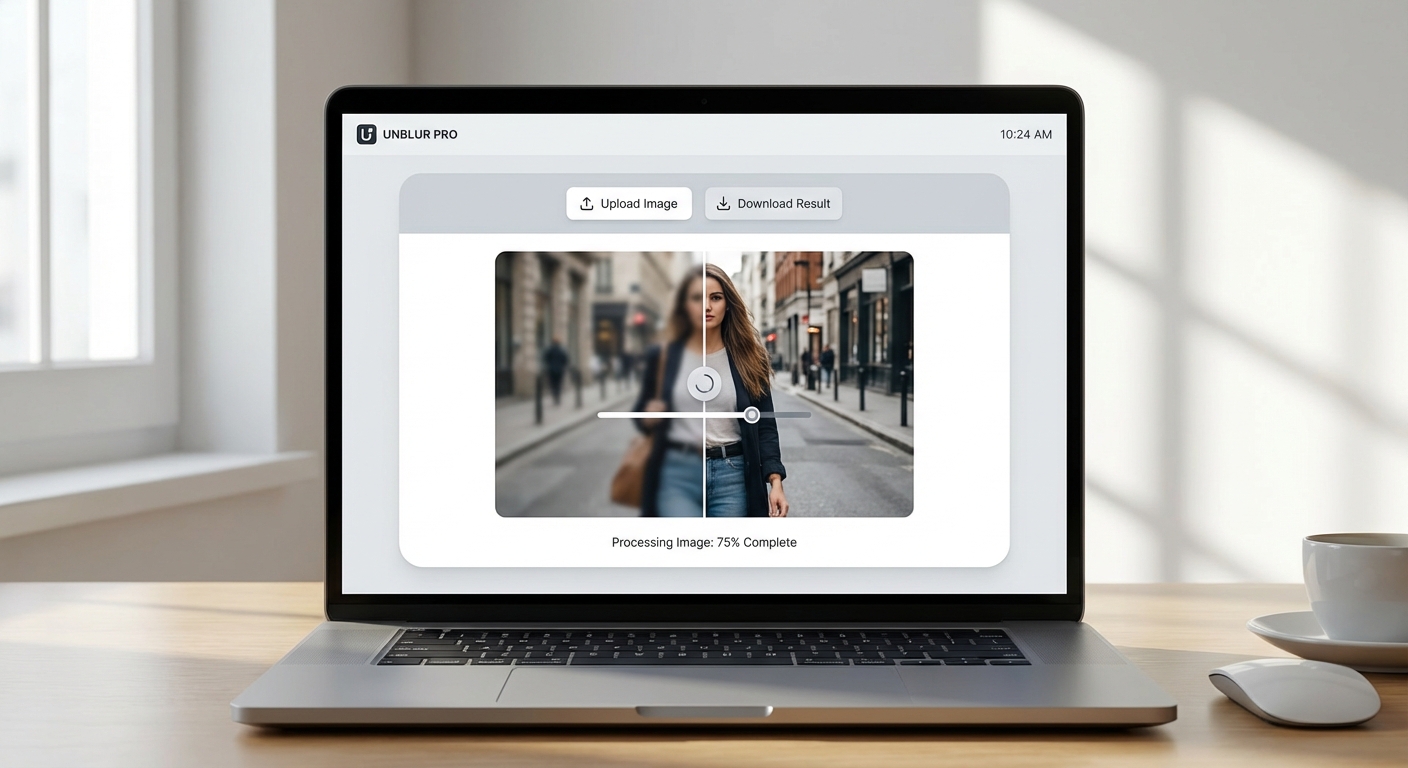
Профессиональные результаты, бесплатный старт
Не нужно дорогое программное обеспечение. Никаких сложных кривых обучения. Просто загрузите размытую фотографию и позвольте нашему ИИ сделать работу. Зарегистрируйтесь бесплатно и получите 5 кредитов, чтобы испытать магию. Каждое удаление размытия использует 2 кредита. Когда вам понравятся результаты (а они понравятся), обновитесь для получения большего количества кредитов и функций.
Начать бесплатноКак Убрать Размытие за 3 Шага
Исправьте любую размытую фотографию с нашим инструментом на базе ИИ
Загрузите Размытое Фото
Загрузите размытое изображение в формате JPG, PNG или WebP. Поддерживаются файлы до 10MB.
ИИ Обработка
Наш ИИ анализирует тип размытия и интеллектуально восстанавливает чёткие детали примерно за 12 секунд.
Скачайте Чёткое Изображение
Скачайте чёткое фото в формате PNG или JPG. Готово к использованию!
Идеально для Любого Размытого Фото
От размытия движения до старых фотографий — наш ИИ справится с любым типом размытия
Размытие Движения
Исправьте фотографии, испорченные тряской камеры или движущимися объектами.
Расфокусировка
Сделайте чёткими фотографии, где камера не попала в фокус.
Старые Фотографии
Восстановите чёткость винтажных и старых семейных фотографий. Сохраните воспоминания в чётких деталях.
Размытие Камеры Телефона
Исправьте размытые фотографии смартфона, вызванные слабым освещением или быстрой съёмкой.
Отсканированные Документы
Сделайте размытые отсканированные документы читаемыми. Идеально для старых чеков и бумаг.
Скриншоты
Улучшите размытые или пикселизированные скриншоты для презентаций и обучающих материалов.
How Nano Banana 2 Compares to Other Image Unblurring Tools
See how our AI image sharpener compares to popular alternatives
Fixing blurry photos is a common need, and several tools offer AI-powered solutions. Here is how Nano Banana 2 Unblur Image compares to the most popular alternatives for image sharpening and restoration.
Nano Banana 2 vs Remini
Remini is a popular mobile app specializing in face enhancement and old photo restoration. It excels at faces but is less effective on landscapes, products, or general images. Remini's free tier adds watermarks and limits daily uses, while the Pro plan costs $9.99/month. Nano Banana 2 works equally well on all image types — faces, products, landscapes, and text — with no watermarks on any plan and a flexible credit system.
Nano Banana 2 vs Topaz Sharpen AI
Topaz Sharpen AI is a professional desktop application ($79.99 one-time) that offers advanced sharpening with motion blur, out-of-focus, and softness correction modes. It produces excellent results but requires downloading software and has a steep learning curve with many parameters to adjust. Nano Banana 2 delivers comparable sharpening quality through a simple web interface — upload and download, no installation or configuration needed.
Nano Banana 2 vs VanceAI
VanceAI offers AI-powered image sharpening alongside other enhancement tools. Its free tier is limited to 3 credits per month and produces lower-resolution output. Premium plans start at $9.99/month. Nano Banana 2 provides generous free credits to start and offers full-resolution output from day one. Both tools use AI-based sharpening, but Nano Banana 2 combines unblurring with detail enhancement in a single step for better overall results.
Nano Banana 2 Unblur Image uses advanced AI to restore sharpness and detail to any blurry photo. No downloads, no watermarks, no subscriptions — just clear, sharp images in seconds.
Tips & Best Practices for Unblurring Images
Get the sharpest results from our AI image sharpener with these expert tips
Start with the Best Available Source
Even though our AI can enhance blurry images, starting with the highest quality version available gives better results. If you have multiple copies of a photo, use the one with the largest file size and resolution as your starting point.
Understand Your Blur Type
Different types of blur respond differently to AI sharpening. Motion blur (camera shake) and slight out-of-focus blur recover best. Heavy gaussian blur or intentional artistic blur may not fully resolve. Knowing what caused the blur helps set realistic expectations.
Prevent Blur at the Source
The best fix for blurry photos is preventing them. Use a tripod, brace against a wall, or enable optical image stabilization. In low light, increase ISO or use a wider aperture rather than slower shutter speeds. Prevention is always better than correction.
Well-Lit Photos Recover Better
Blurry photos taken in good lighting conditions recover much better than dark, blurry photos. The AI has more detail to work with when the image has adequate exposure. If possible, brighten the image slightly before running the unblur process.
Crop Before Processing
If only part of your image is blurry, or if you only need a specific area to be sharp, crop the image first and process just that portion. This focuses the AI's enhancement on the area that matters and can produce sharper results.
Consider Multiple Enhancement Passes
For severely blurry images, running the enhancement twice can improve results. Process the image once, download the result, and then process it again. The second pass often recovers additional detail that the first pass revealed.
Compare Before and After Carefully
Always compare the enhanced image with the original at 100% zoom. Check that important details like text, faces, and edges have been genuinely sharpened without introducing artifacts. Sometimes AI sharpening can create unnatural-looking edges.
Always Keep Your Original File
Never replace your original blurry photo. Keep it as a backup in case you want to re-process it with different settings later. AI models improve over time, and future processing may produce even better results from the same source image.
Explore More AI Tools
Discover our complete suite of AI photo editing tools
Часто Задаваемые Вопросы
Всё, что нужно знать о нашем инструменте удаления размытия ИИ
Готовы Исправить Размытые Фотографии?
Начните бесплатно. Кредитная карта не требуется. Зарегистрируйтесь и получите 5 бесплатных кредитов мгновенно.
Built by NanoBanana2 — explore all free AI image tools.