AI图片放大器 - 免费放大到4K
无损放大图片至4K或更高分辨率。AI驱动的2倍和4倍放大,支持人脸增强。免费开始。
选择图片
拖放或点击上传
JPG, PNG, WEBP • 最大10MB
或试试示例
放大选项
由GFPGAN驱动,增强面部特征
为什么选择我们的AI图片放大器?
采用Real-ESRGAN技术的专业AI图片放大
放大至4K及更高
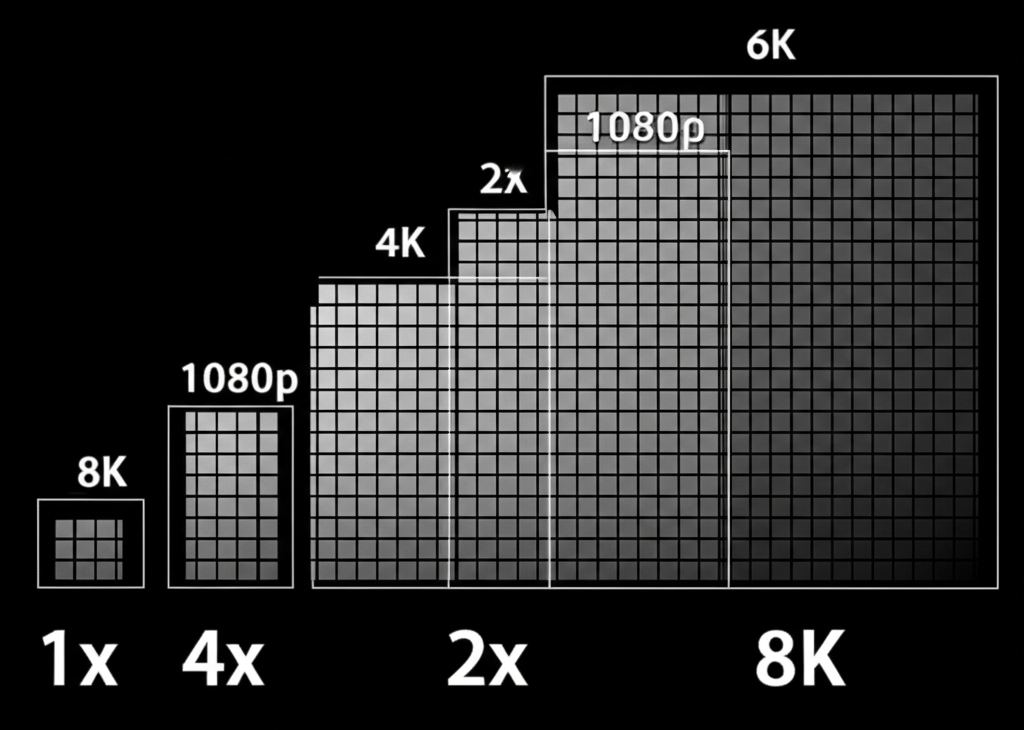
将小图片转换为大型打印级文件。2倍使分辨率翻倍,4倍使其翻四倍——达到4K、8K甚至更高。非常适合打印海报、放大壁纸或为大型显示器准备图片。
- 2倍:快速处理(约12秒),适合社交媒体
- 4倍:最大细节(约25秒),适合打印
- 无质量损失——AI填补缺失细节
- 支持最大10MB的任意图片
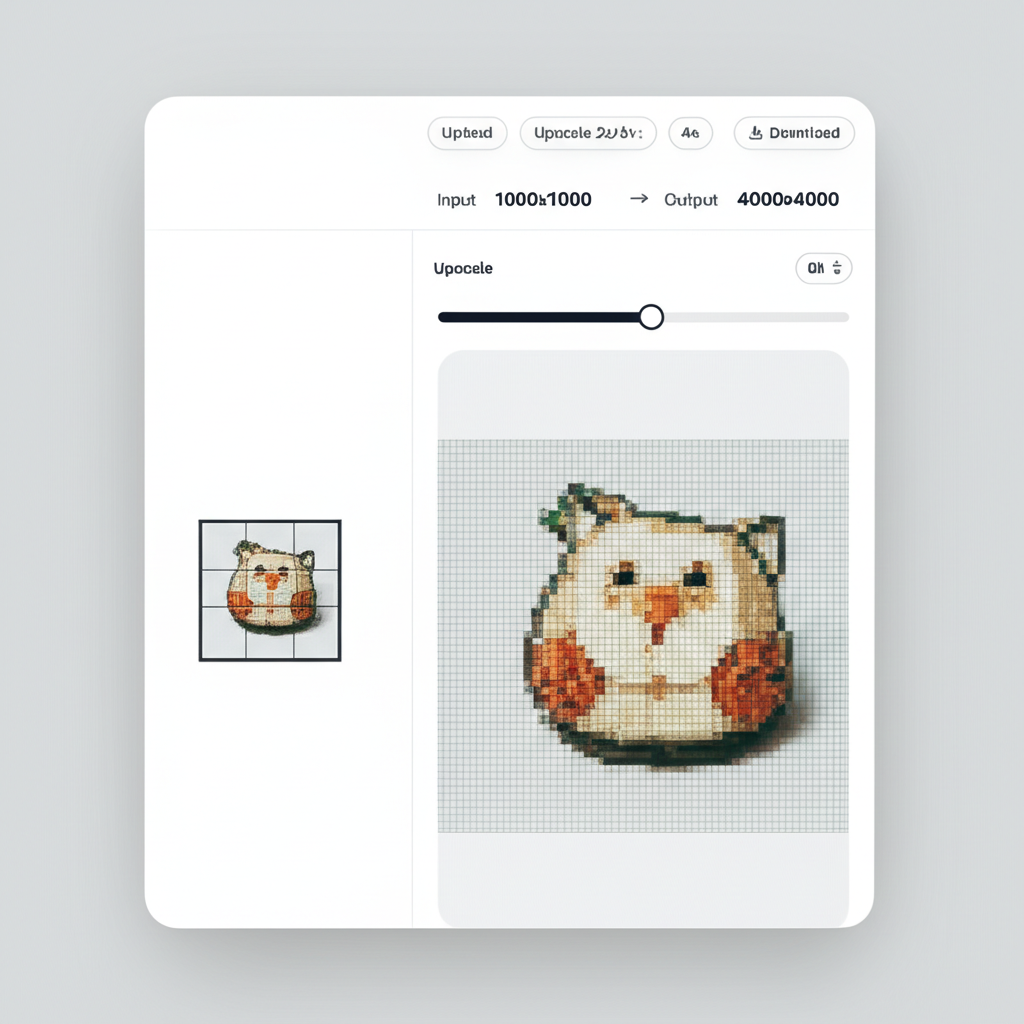
3步放大图片
使用AI将任何图片放大至4K或更高分辨率
上传图片
上传任何JPG、PNG或WebP图片,最大10MB。拖放或点击浏览。
选择放大设置
选择2倍或4倍放大倍数,为人像开启人脸增强。
下载高清结果
几秒钟即可获得放大后的图片。下载PNG获得最佳质量,或JPG获得更小文件。
The Technology Behind AI Image Upscaling
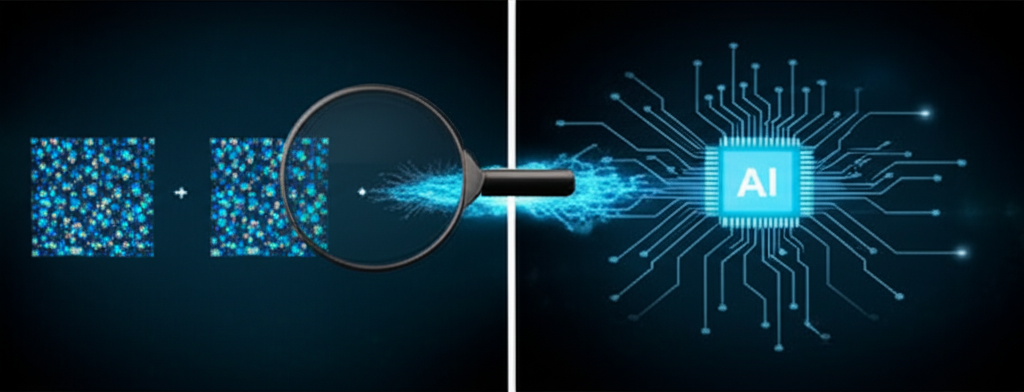
Our image upscaler uses Real-ESRGAN (Real-Enhanced Super-Resolution Generative Adversarial Network), a state-of-the-art AI model specifically designed for image super-resolution. Unlike traditional bicubic or bilinear interpolation that simply stretches pixels and creates blurry results, Real-ESRGAN has been trained on millions of image pairs to understand textures, edges, patterns, and fine details. When you upload an image, the model analyzes the existing pixels and intelligently generates new, realistic detail that fills in the gaps. For portraits, we optionally apply GFPGAN (Generative Facial Prior GAN), which specializes in restoring and enhancing facial features with remarkable accuracy.
Step 1: 上传图片
Upload any image in JPG, PNG, or WebP format up to 10MB. Our system detects the image dimensions, color profile, and content type automatically. For optimal 4x results, we recommend images at least 512x512 pixels — smaller images work too but may show more AI-generated texture patterns.
Step 2: 选择放大设置
Choose 2x upscaling to double your resolution (e.g., 1000x1000 → 2000x2000) or 4x to quadruple it (e.g., 1000x1000 → 4000x4000). Toggle face enhancement if your image contains people — GFPGAN will sharpen eyes, improve skin texture, and enhance facial expressions while keeping results natural and realistic.
Step 3: 下载高清结果
Once processing completes, you can compare the original and upscaled versions side by side. Download as PNG for maximum quality and lossless output, or JPG for a smaller file size suitable for web use and sharing. All downloads are full resolution with no watermarks.
图片放大使用场景
从老照片到AI艺术,将任何图片放大到打印级分辨率
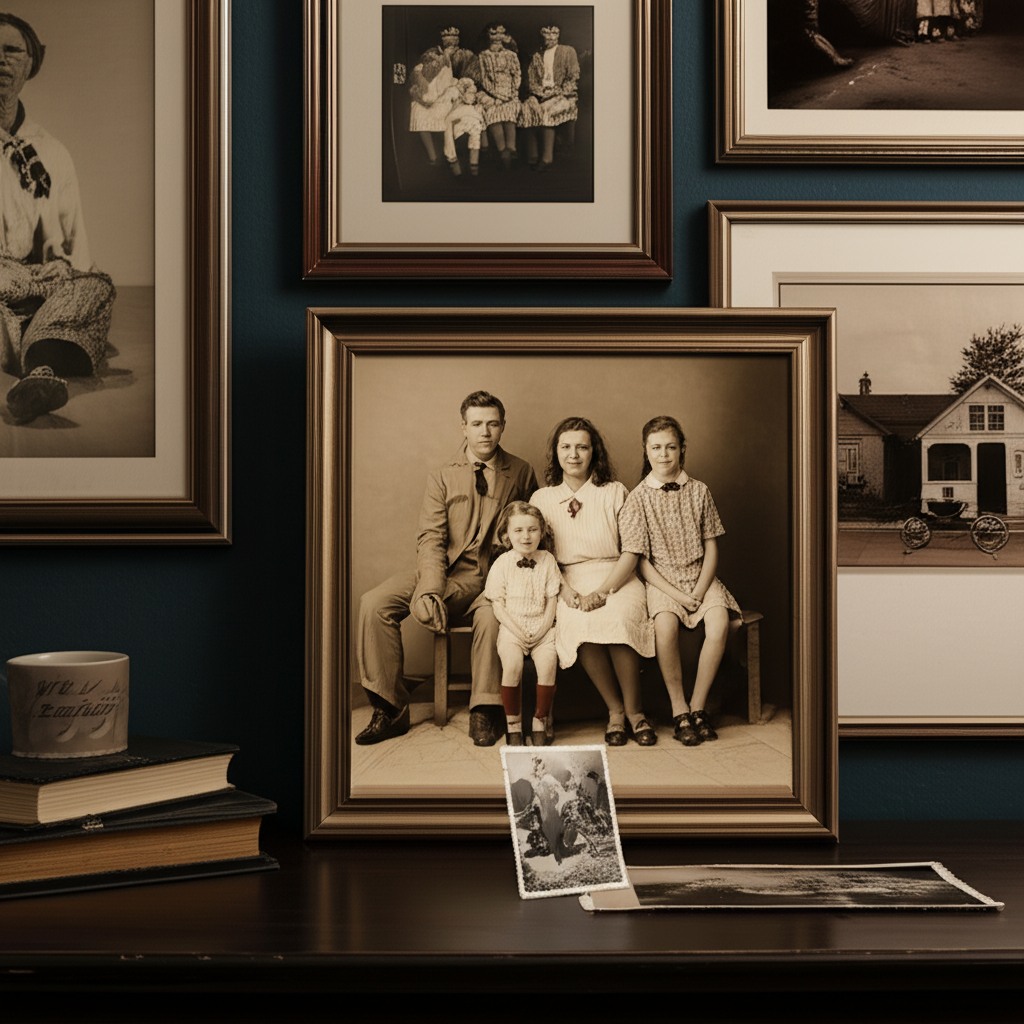
老照片放大
放大珍贵记忆和老照片用于打印。将小的、像素化的图片转换为大的、细节丰富的打印品。
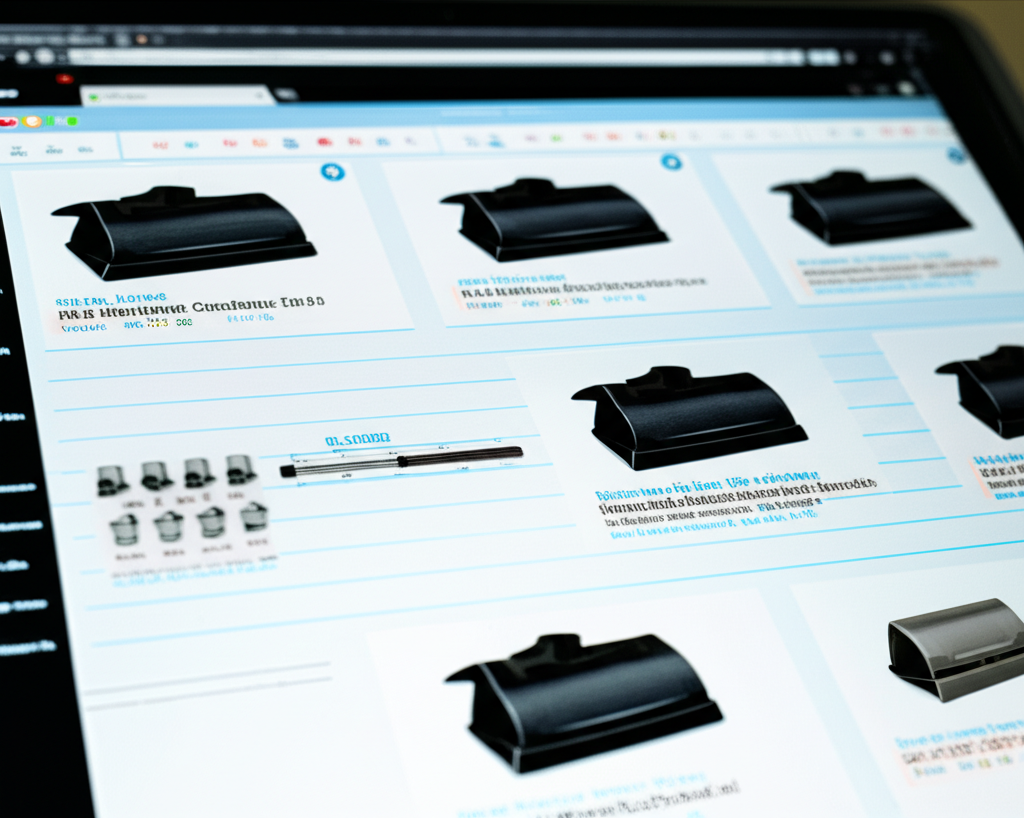
电商产品图
放大产品照片以支持缩放功能。创建展示每个细节的高分辨率图片。
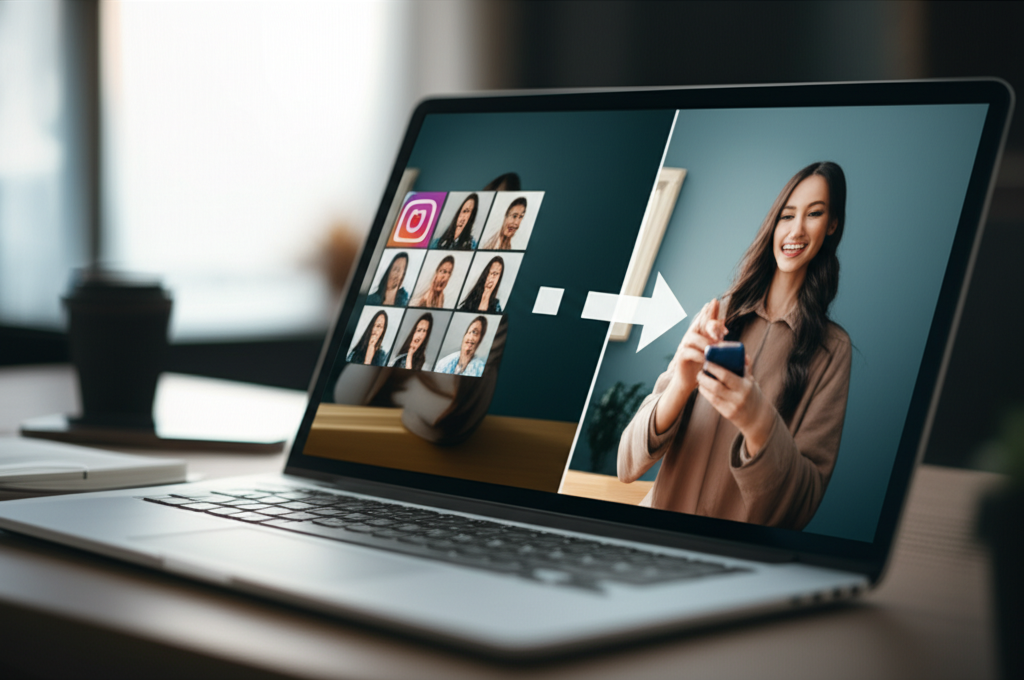
社交媒体内容
为大屏幕和高DPI屏幕放大图片。让您的内容在任何设备上都看起来惊艳。
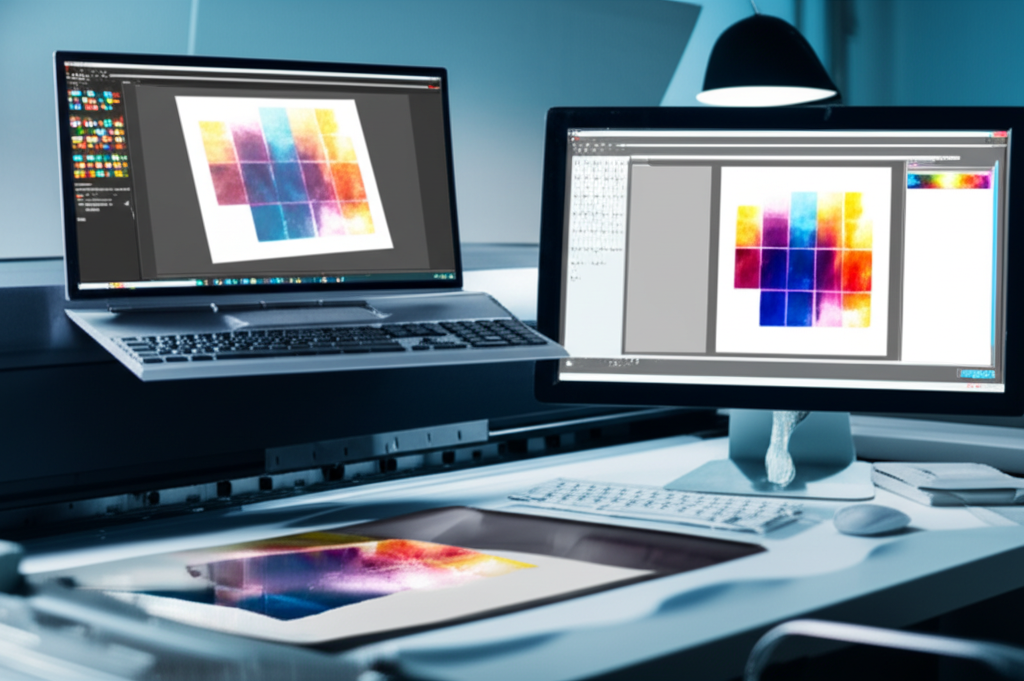
打印与海报
为大幅打印准备图片。放大至海报尺寸而不损失清晰度或细节。
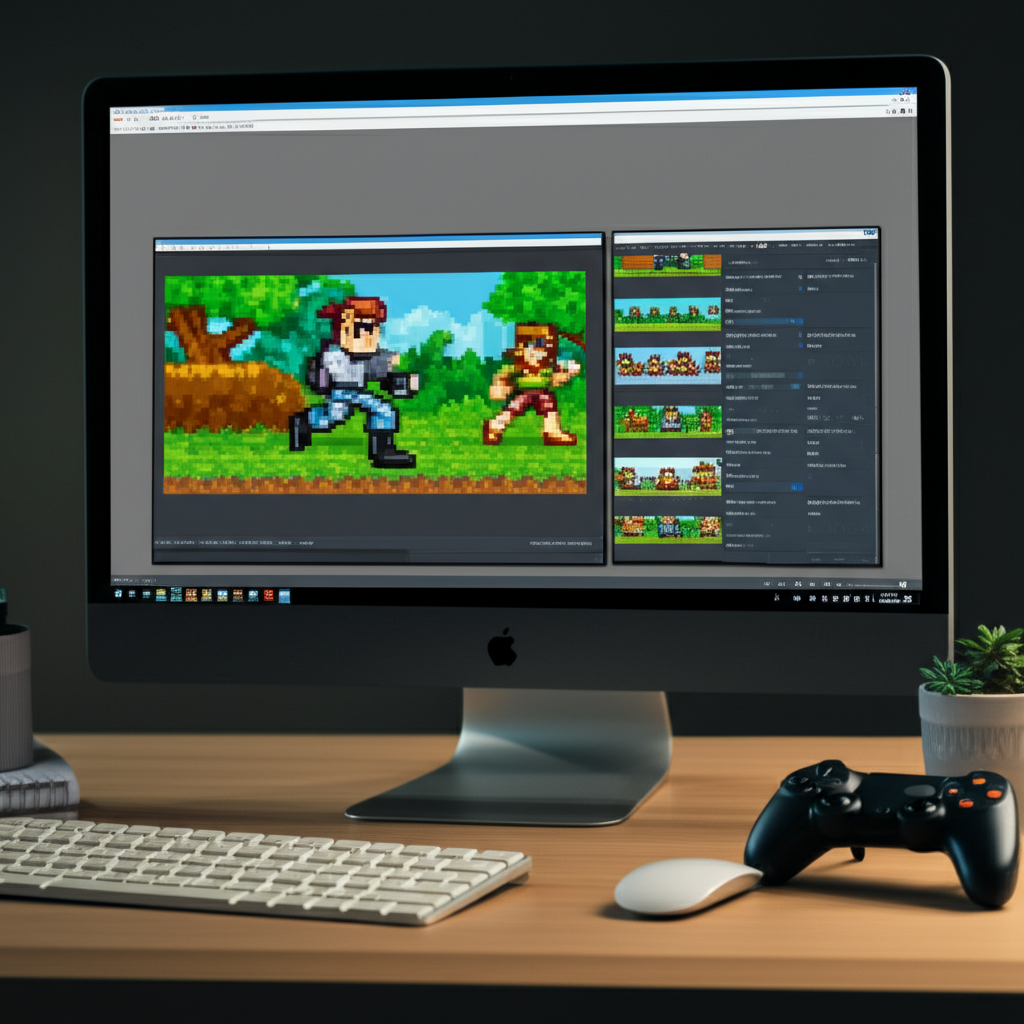
游戏和数字资产
为现代显示器放大纹理、精灵和数字艺术。非常适合游戏模组和数字项目。
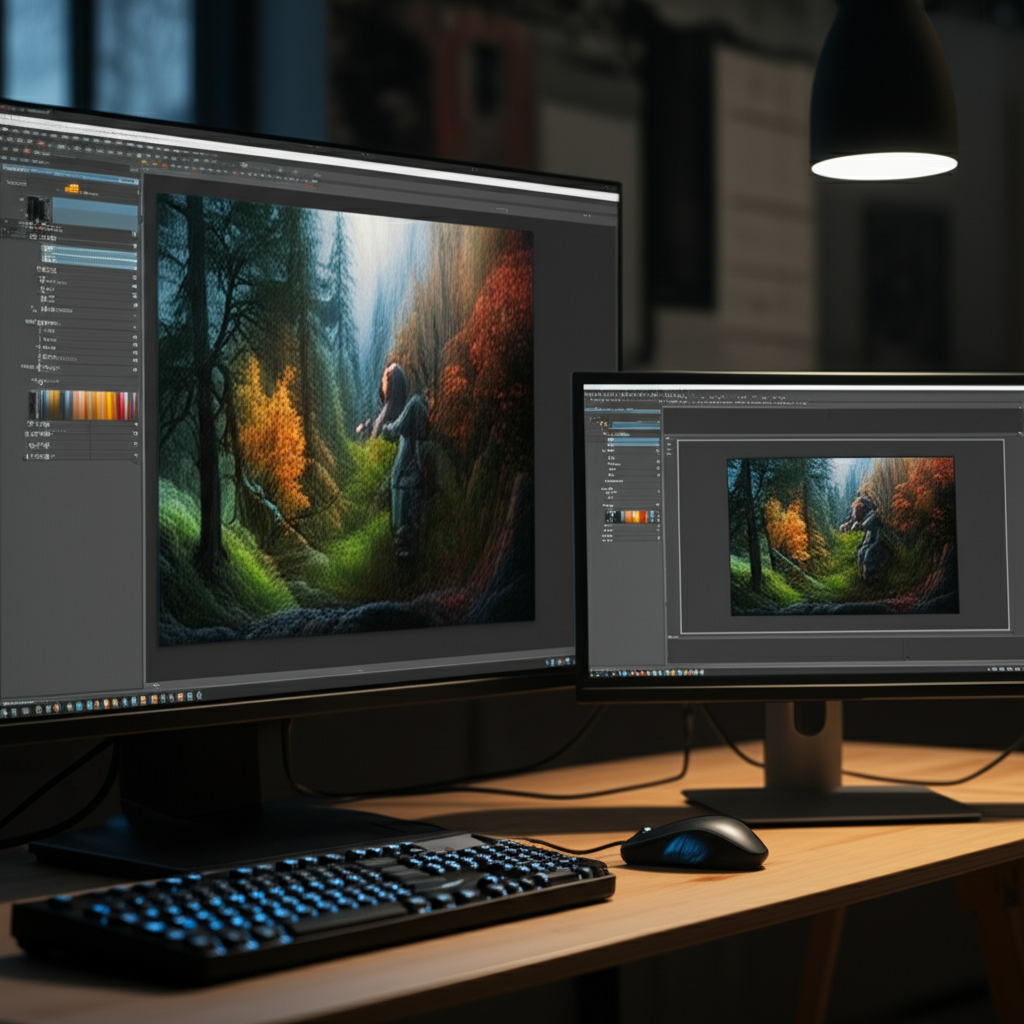
AI生成艺术
放大AI生成的图片用于打印或展示。将您的作品从预览尺寸变成可挂墙的艺术品。
Real Estate Photography
Upscale property listing photos for high-resolution virtual tours and large display prints. Make room photos look sharp and professional on real estate websites.
Wedding & Event Photos
Enlarge precious wedding and event photos for printing, framing, and albums. Recover detail from distant shots and make every moment print-worthy.
Document & Scan Enhancement
Upscale scanned documents, book pages, and archival materials for better readability. Sharpen text and illustrations that were captured at low resolution.
Desktop & Phone Wallpapers
Transform any image into a crisp, high-resolution wallpaper for your desktop, laptop, or phone. Upscale to match your exact screen resolution for pixel-perfect display.
How Nano Banana 2 Compares to Other Image Upscalers
An honest look at how our AI upscaler stacks up against popular alternatives
AI image upscaling has become widely available, but not all tools are equal. Here is how Nano Banana 2 Image Upscaler compares to the most popular alternatives on the market.
Nano Banana 2 vs Bigjpg
Bigjpg is a popular free upscaler that uses waifu2x-based models, which work particularly well for anime and illustration-style images. For photographic content, however, Real-ESRGAN (used by Nano Banana 2) generally produces more realistic textures and finer detail. Bigjpg also has queue times during peak hours and limits free users to lower resolution outputs. Nano Banana 2 processes images immediately with no queue and provides full-resolution downloads for all users.
Nano Banana 2 vs Let's Enhance
Let's Enhance is a subscription-based service (/month) offering multiple AI upscaling models. It provides good quality and batch processing for paid users. The downside is the monthly subscription — if you only need occasional upscaling, the per-image cost can be quite high. Nano Banana 2 uses a credit-based system where you pay only for what you use, making it significantly more cost-effective for moderate usage. Both tools deliver comparable quality for photographic content.
Nano Banana 2 vs Topaz Gigapixel AI
Topaz Gigapixel AI is a premium desktop application (9 one-time purchase) that offers excellent upscaling quality and full offline processing. It is the go-to choice for professional photographers who process large volumes of images. For casual and moderate users, however, the upfront cost and desktop-only limitation make it less accessible. Nano Banana 2 offers comparable quality through a browser-based interface with no software installation required, and our credit system makes it accessible for any budget.
Nano Banana 2 Image Upscaler provides professional-quality Real-ESRGAN upscaling with an optional GFPGAN face enhancer, all through a simple browser-based interface. Our pay-as-you-go pricing makes high-quality upscaling accessible without subscriptions or expensive software purchases.
Tips & Best Practices for Image Upscaling
Maximize the quality of your upscaled images with these expert recommendations
Start with the Best Available Quality
AI upscaling amplifies both detail and artifacts. Start with the highest quality source image available — avoid heavily compressed JPGs or images with visible noise. If you have access to the original file, use it instead of a web-optimized version.
Choose the Right Scale Factor
Use 2x for images that just need a moderate boost — web thumbnails to full-size, or social media to print. Use 4x for images that need dramatic enlargement — old photos to poster size, or AI art to wall display. Over-upscaling beyond what the source supports may introduce unwanted AI artifacts.
Enable Face Enhancement for Portraits
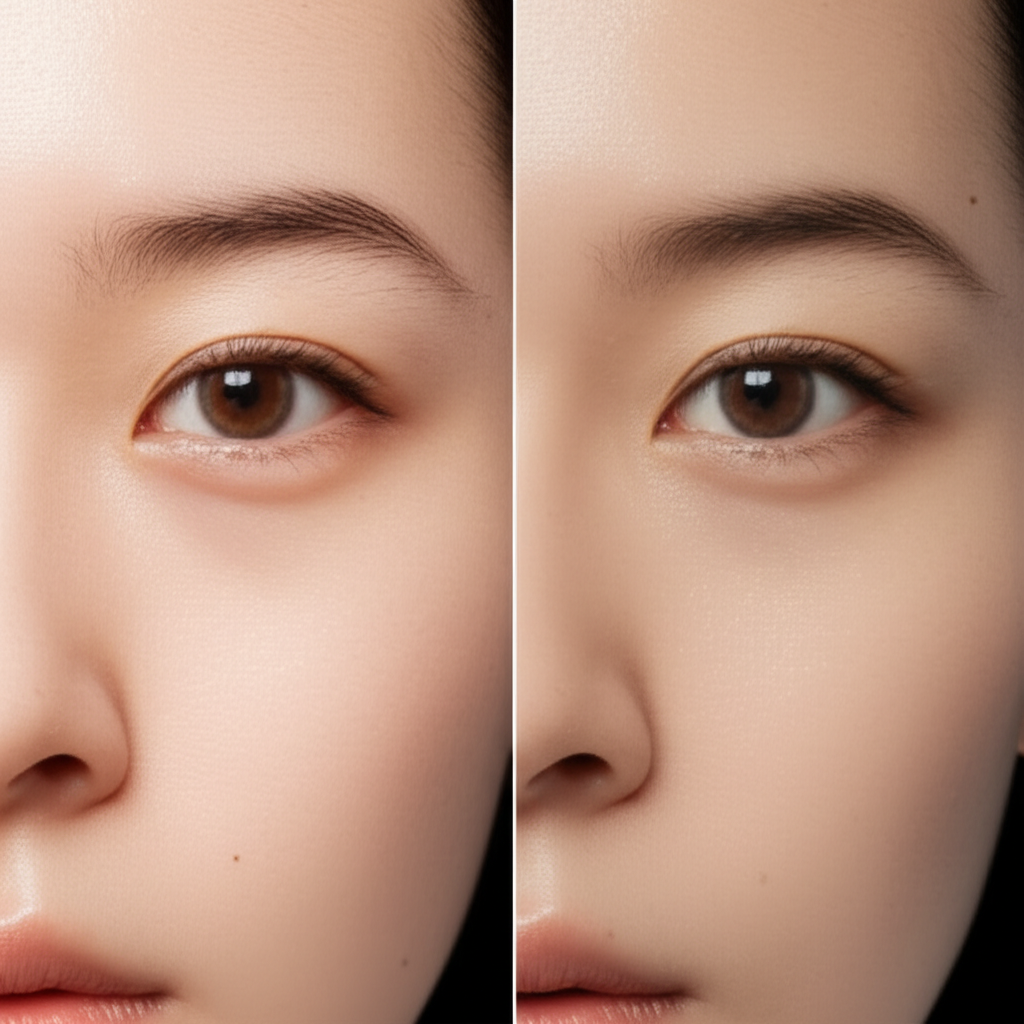
Whenever your image contains faces, toggle on face enhancement. GFPGAN specifically targets facial features, producing noticeably sharper eyes, more natural skin textures, and clearer expressions compared to general upscaling alone.
Use PNG for Maximum Quality
Always download upscaled results as PNG when quality matters. JPG compression can undo some of the detail the AI generated. Save as JPG only when you need smaller file sizes for web uploads or sharing.
Avoid Upscaling Already-Upscaled Images
Running an upscaled image through the upscaler again rarely improves quality and can introduce compounding AI artifacts. If you need more than 4x enlargement, start with 4x from the original rather than running 2x twice.
Crop Before Upscaling
If you only need a portion of the image at high resolution, crop it first and then upscale. This saves processing time and credits, and the AI can focus its detail generation on the content that matters.
Compare Before and After
Use the side-by-side preview to inspect the upscaled result at full zoom before downloading. Check edges, textures, and faces to ensure the output meets your expectations. Different images respond differently to upscaling.
Test with a Small Section First
For important projects, test upscaling on a cropped section of your image first. This lets you evaluate the quality before committing credits to the full image, especially useful for 4x upscaling of large images.
Upscale your product photos to 4K, then create stunning lifestyle scenes for your listings.
探索更多 AI 工具
发现我们完整的 AI 图片编辑工具套件
Built by NanoBanana2 — explore all AI image tools for free.