图片去模糊 - AI修复模糊照片
使用AI瞬间将模糊、失焦的照片变清晰。免费开始,无需专业技能。
选择模糊图片
拖放或点击上传
JPG, PNG, WEBP • 最大10MB
或试试示例图片
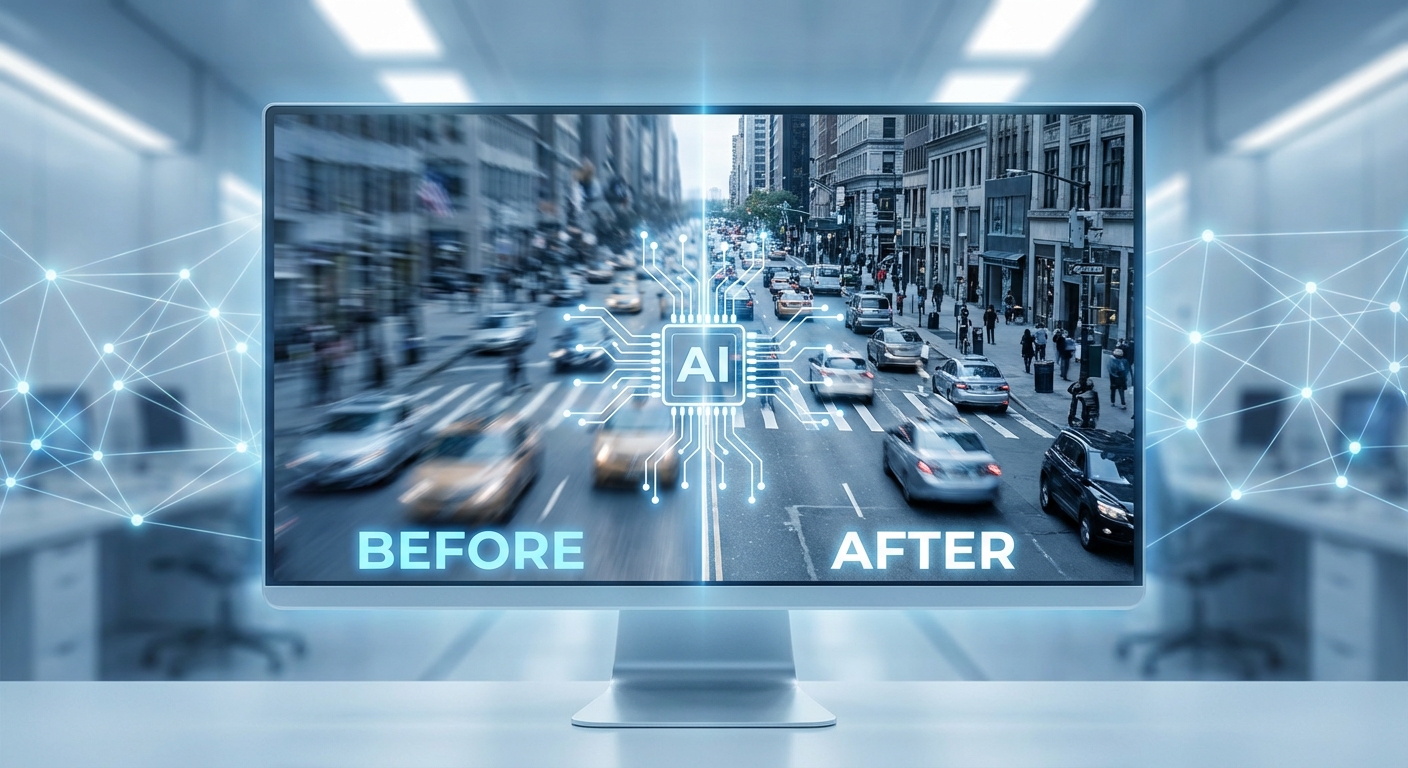
AI智能还原,让模糊照片重现清晰
我们的高级AI能够分析各种模糊模式并智能重建丢失的细节。使用在数百万张图片上训练的Real-ESRGAN技术,有效修复运动模糊、对焦问题和相机抖动。与简单的锐化滤镜不同,我们的AI能够智能重建被模糊遮盖的内容——还您照片应有的清晰度。
免费去除模糊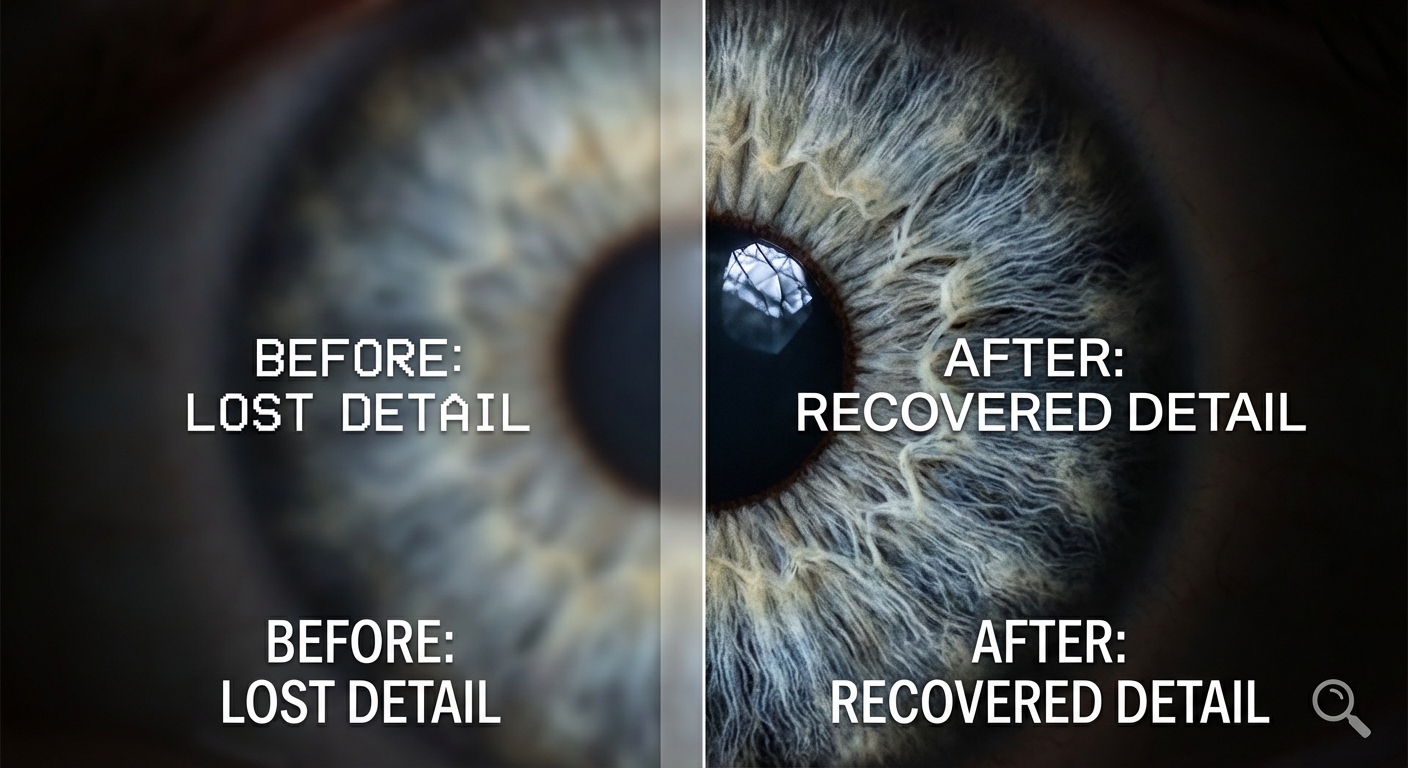
找回您以为永远丢失的细节
模糊的照片往往隐藏着重要细节——人脸、文字、精细纹理。我们的AI不只是简单锐化边缘,而是智能重建丢失的内容。无论是褪色的家庭老照片还是重要文件,都能恢复关键的清晰度和细节。AI逐像素处理,还原自然的清晰感,不会产生人工伪影。
立即体验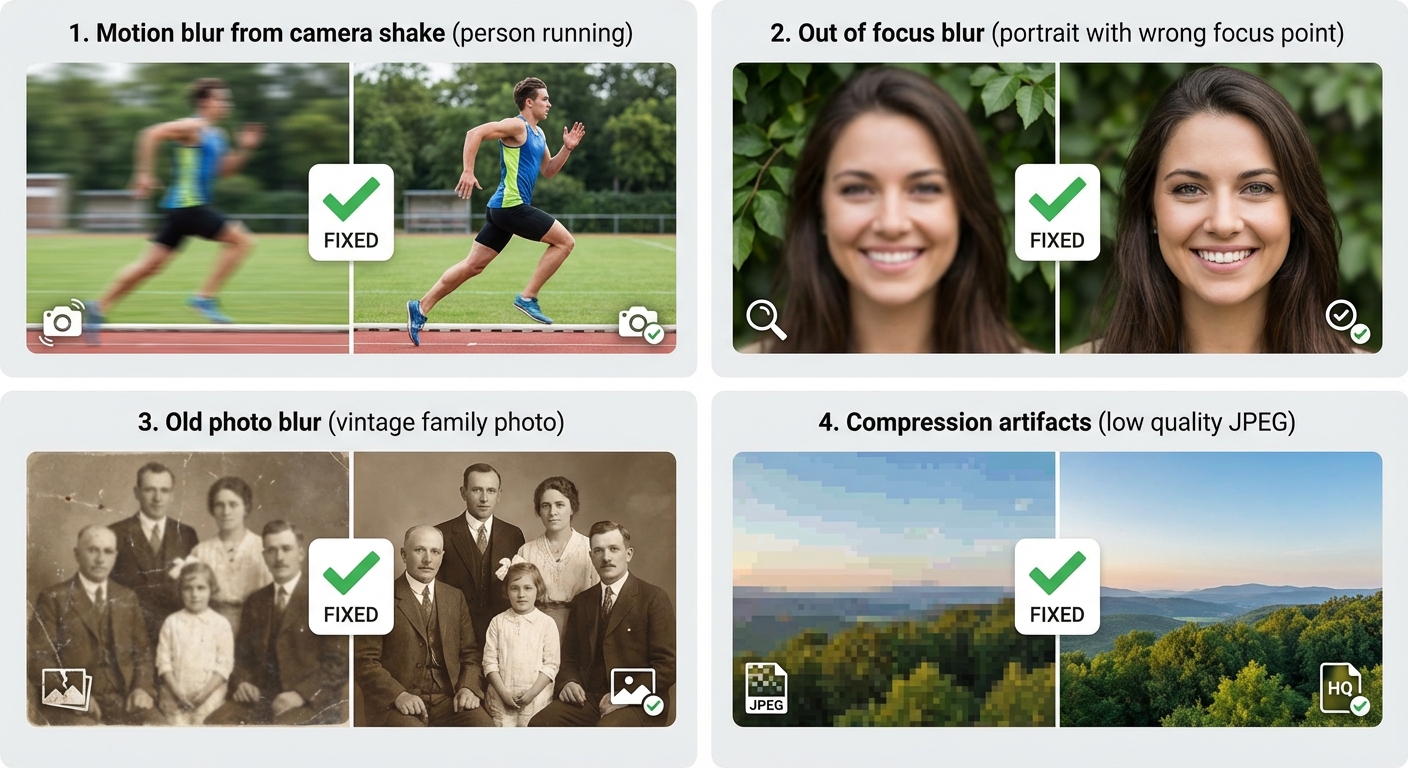
适用于所有类型的模糊
不同的模糊类型需要不同的解决方案。我们的AI经过专门训练,能够处理各种情况:
- 相机抖动或物体移动造成的运动模糊
- 自动对焦失误导致的失焦模糊
- 老照片扫描或打印退化的模糊
- 重度JPEG压缩导致的压缩模糊
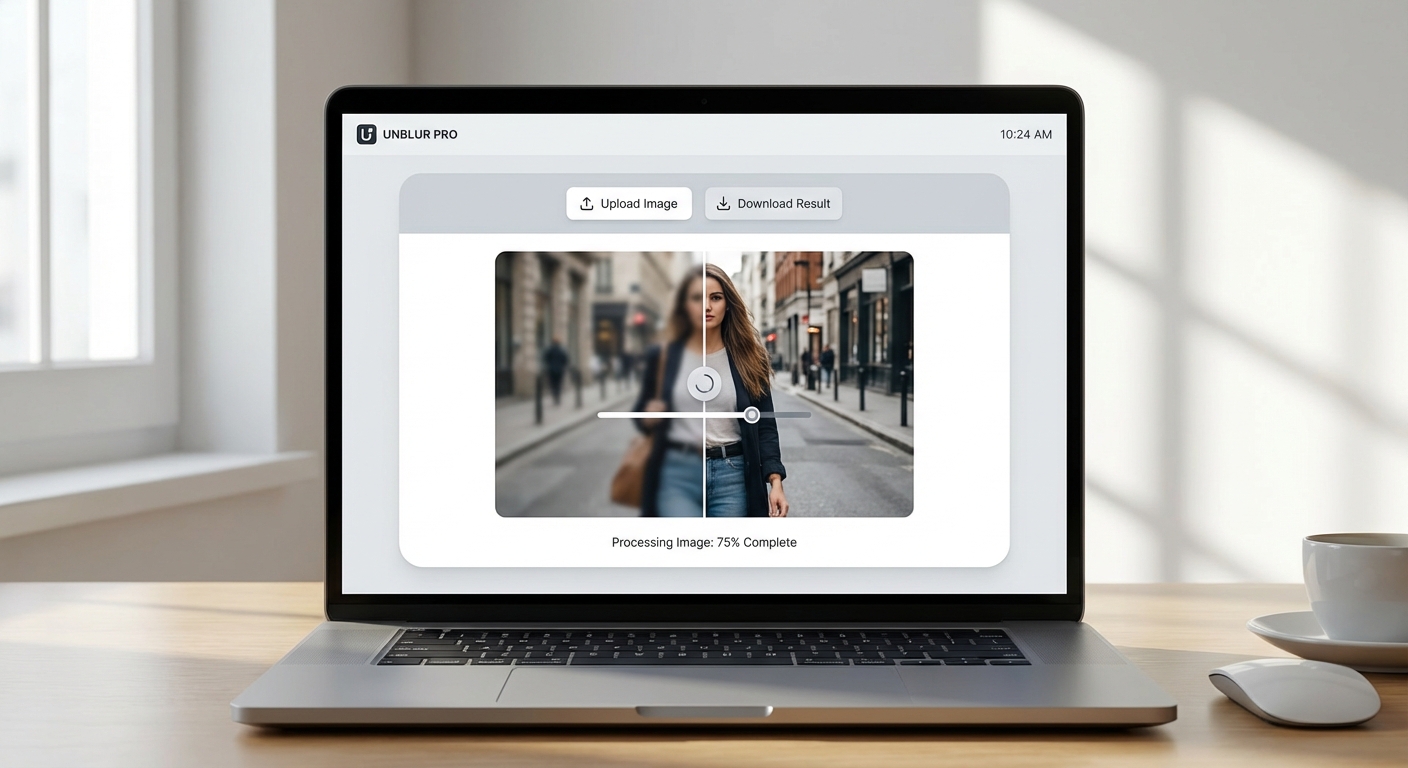
专业效果,免费开始
无需昂贵的软件,无需复杂的学习曲线。只需上传您的模糊照片,让AI来处理。免费注册即可获得5积分体验。每次去模糊消耗2积分。当您喜欢上这个效果(相信您会的),可以升级获取更多积分和功能。
免费开始3步去除照片模糊
使用我们的AI工具修复任何模糊照片
上传模糊照片
上传JPG、PNG或WebP格式的模糊图片,支持最大10MB。
AI处理
我们的AI分析模糊类型,在约12秒内智能重建清晰细节。
下载清晰图片
下载PNG或JPG格式的清晰照片,立即可用!
适用于任何模糊照片
从运动模糊到老照片,我们的AI处理各种类型的模糊
运动模糊
修复因相机抖动或移动物体导致的照片模糊。恢复动态照片的清晰度。
对焦不准
锐化相机对焦不准的照片。让主体呈现清晰的画面。
老照片
恢复老旧家庭照片的清晰度。以清晰的细节保存珍贵记忆。
手机拍摄模糊
修复因低光或快速拍摄导致的手机照片模糊。
扫描文档
让模糊的扫描文档变得清晰可读。适用于老旧收据和文件。
截图
增强模糊或像素化的截图,用于演示和教程。
How Nano Banana 2 Compares to Other Image Unblurring Tools
See how our AI image sharpener compares to popular alternatives
Fixing blurry photos is a common need, and several tools offer AI-powered solutions. Here is how Nano Banana 2 Unblur Image compares to the most popular alternatives for image sharpening and restoration.
Nano Banana 2 vs Remini
Remini is a popular mobile app specializing in face enhancement and old photo restoration. It excels at faces but is less effective on landscapes, products, or general images. Remini's free tier adds watermarks and limits daily uses, while the Pro plan costs $9.99/month. Nano Banana 2 works equally well on all image types — faces, products, landscapes, and text — with no watermarks on any plan and a flexible credit system.
Nano Banana 2 vs Topaz Sharpen AI
Topaz Sharpen AI is a professional desktop application ($79.99 one-time) that offers advanced sharpening with motion blur, out-of-focus, and softness correction modes. It produces excellent results but requires downloading software and has a steep learning curve with many parameters to adjust. Nano Banana 2 delivers comparable sharpening quality through a simple web interface — upload and download, no installation or configuration needed.
Nano Banana 2 vs VanceAI
VanceAI offers AI-powered image sharpening alongside other enhancement tools. Its free tier is limited to 3 credits per month and produces lower-resolution output. Premium plans start at $9.99/month. Nano Banana 2 provides generous free credits to start and offers full-resolution output from day one. Both tools use AI-based sharpening, but Nano Banana 2 combines unblurring with detail enhancement in a single step for better overall results.
Nano Banana 2 Unblur Image uses advanced AI to restore sharpness and detail to any blurry photo. No downloads, no watermarks, no subscriptions — just clear, sharp images in seconds.
Tips & Best Practices for Unblurring Images
Get the sharpest results from our AI image sharpener with these expert tips
Start with the Best Available Source
Even though our AI can enhance blurry images, starting with the highest quality version available gives better results. If you have multiple copies of a photo, use the one with the largest file size and resolution as your starting point.
Understand Your Blur Type
Different types of blur respond differently to AI sharpening. Motion blur (camera shake) and slight out-of-focus blur recover best. Heavy gaussian blur or intentional artistic blur may not fully resolve. Knowing what caused the blur helps set realistic expectations.
Prevent Blur at the Source
The best fix for blurry photos is preventing them. Use a tripod, brace against a wall, or enable optical image stabilization. In low light, increase ISO or use a wider aperture rather than slower shutter speeds. Prevention is always better than correction.
Well-Lit Photos Recover Better
Blurry photos taken in good lighting conditions recover much better than dark, blurry photos. The AI has more detail to work with when the image has adequate exposure. If possible, brighten the image slightly before running the unblur process.
Crop Before Processing
If only part of your image is blurry, or if you only need a specific area to be sharp, crop the image first and process just that portion. This focuses the AI's enhancement on the area that matters and can produce sharper results.
Consider Multiple Enhancement Passes
For severely blurry images, running the enhancement twice can improve results. Process the image once, download the result, and then process it again. The second pass often recovers additional detail that the first pass revealed.
Compare Before and After Carefully
Always compare the enhanced image with the original at 100% zoom. Check that important details like text, faces, and edges have been genuinely sharpened without introducing artifacts. Sometimes AI sharpening can create unnatural-looking edges.
Always Keep Your Original File
Never replace your original blurry photo. Keep it as a backup in case you want to re-process it with different settings later. AI models improve over time, and future processing may produce even better results from the same source image.
探索更多 AI 工具
发现我们完整的 AI 图片编辑工具套件
常见问题
关于AI去模糊工具的一切
准备好修复模糊照片了吗?
免费开始使用,无需信用卡。注册即可获得5个免费积分。
Built by NanoBanana2 — explore all free AI image tools.