AI 物体移除工具
几秒内移除照片中不想要的物体、人物、文字和瑕疵
选择图片
拖拽或点击上传
JPG, PNG, WEBP • 最大10MB
或尝试示例
AI精准移除,秒级完成
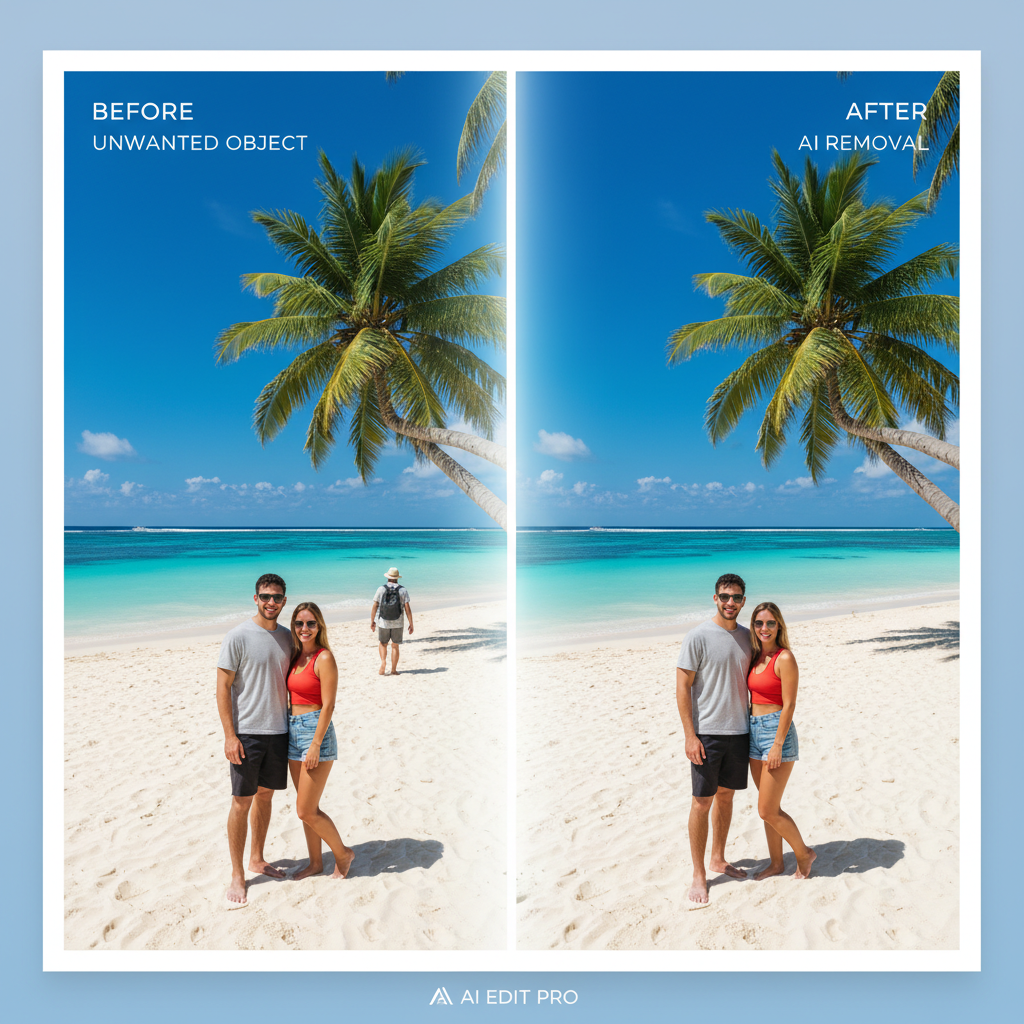
告别繁琐的Photoshop手动编辑。我们先进的LaMa AI模型能在几秒内智能识别并移除照片中不想要的物体。无论是度假照中的路人、产品图中的干扰元素,还是不想要的文字和水印——AI都能以专业级精度处理,不留痕迹。
免费试用
移除任何照片中的任何物体
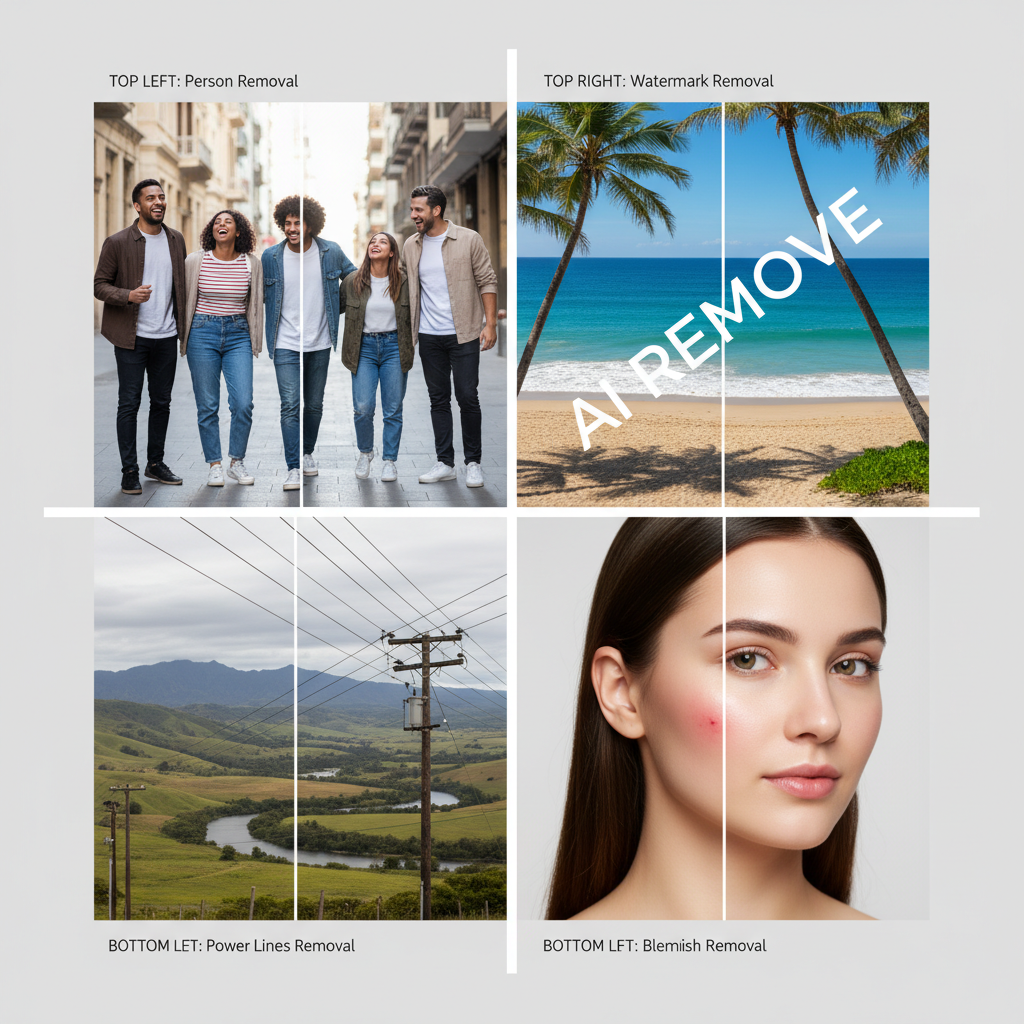
我们的物体移除工具能精确处理几乎所有移除任务。只需用画笔涂抹要移除的内容,看着它消失。
- 旅行照片中的路人和不速之客
- 图片上的水印和标志
- 风景照中的电线和电缆
- 人像中的皮肤瑕疵和不完美之处
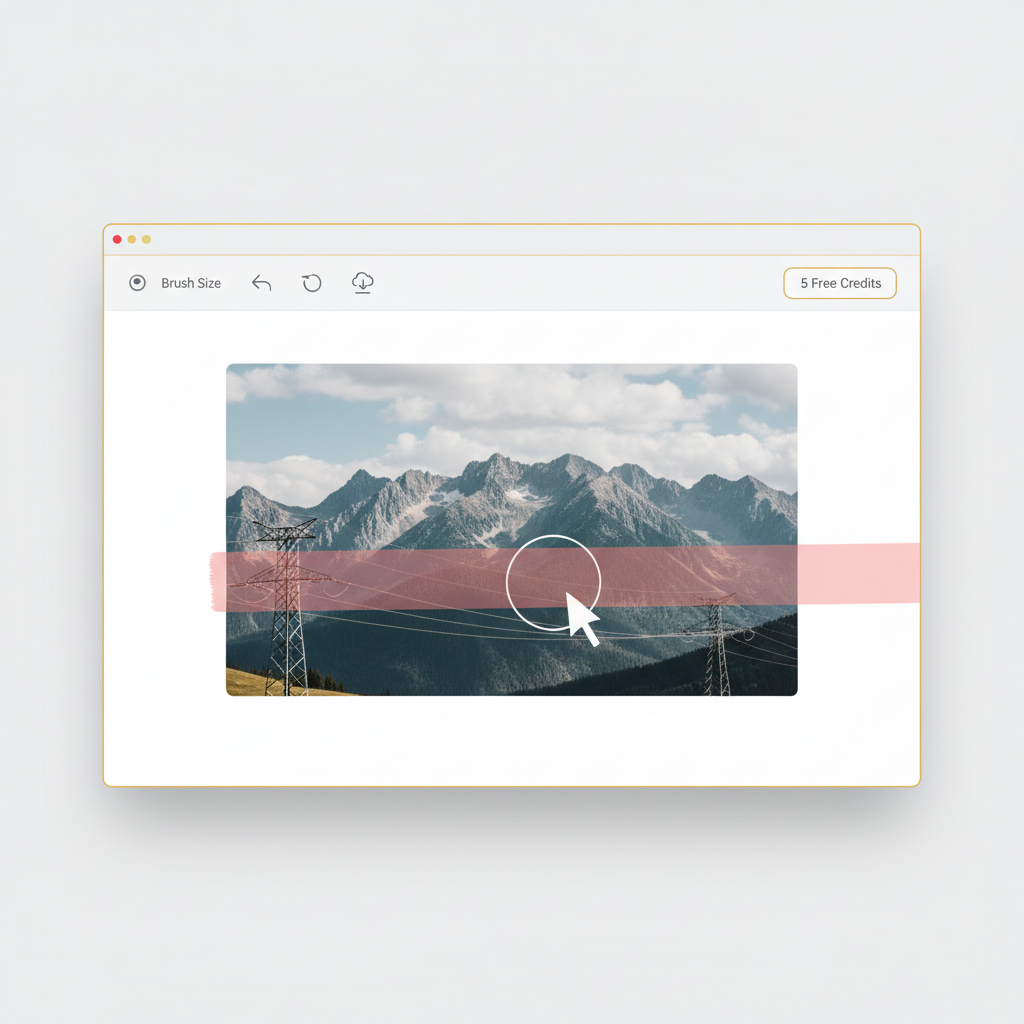
专业效果,免费开始
无需昂贵的软件。无需复杂的学习曲线。只需上传图片,用画笔涂抹要移除的物体,让AI施展魔法。免费注册即可获得5积分体验效果。每次物体移除仅需2积分。当您喜欢上这个效果后,可升级获得无限使用权限。
免费开始3步移除物体
几秒内从任何照片中移除不需要的物体
上传图片
上传您的照片,支持JPG、PNG、WEBP格式,最大10MB。
涂抹物体
使用画笔工具标记要移除的物体。
下载结果
AI移除标记的物体并自然填充区域,下载您的干净照片。
支持的格式
最大文件大小:10MB
物体移除使用场景
从照片修复到专业编辑,我们的AI全部胜任

移除路人
轻松移除度假照和合照中不想要的人物。
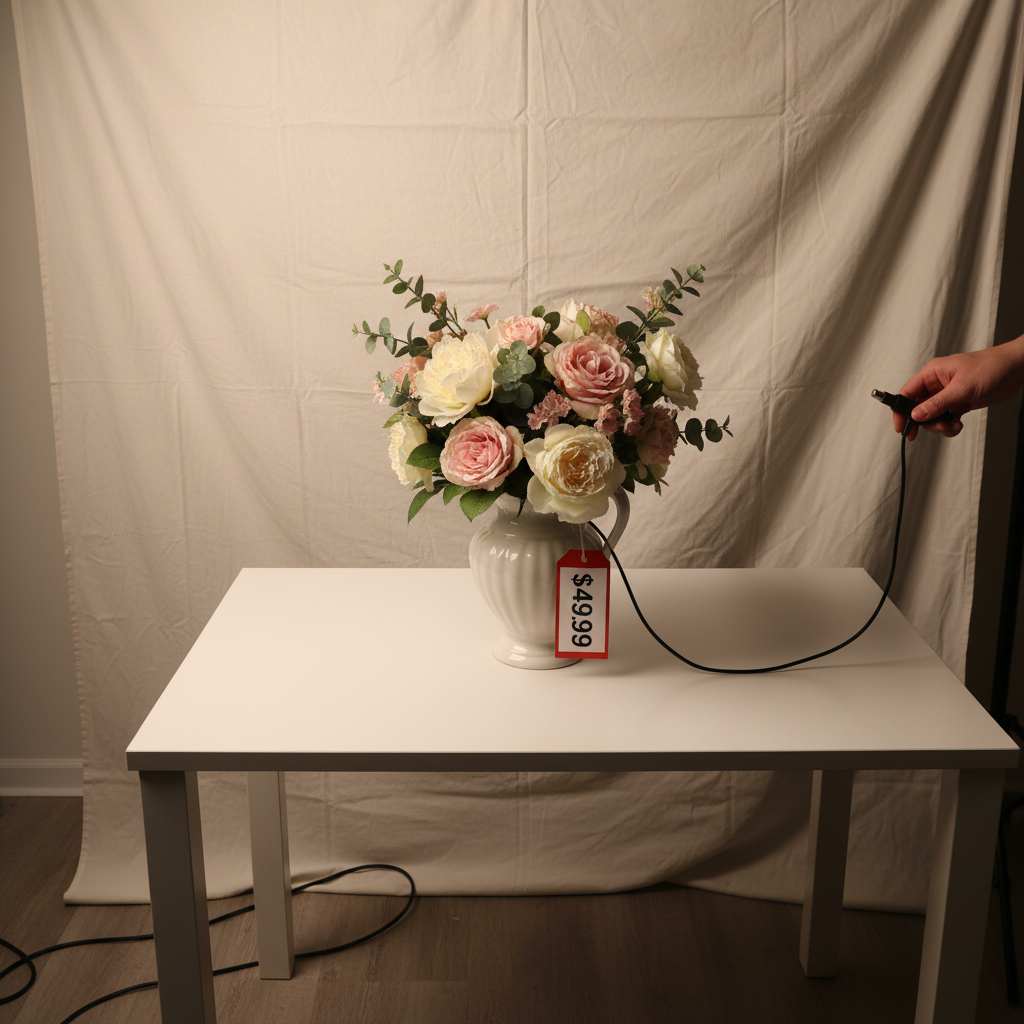
清理产品图
移除产品图片中的干扰元素,用于电商上架。
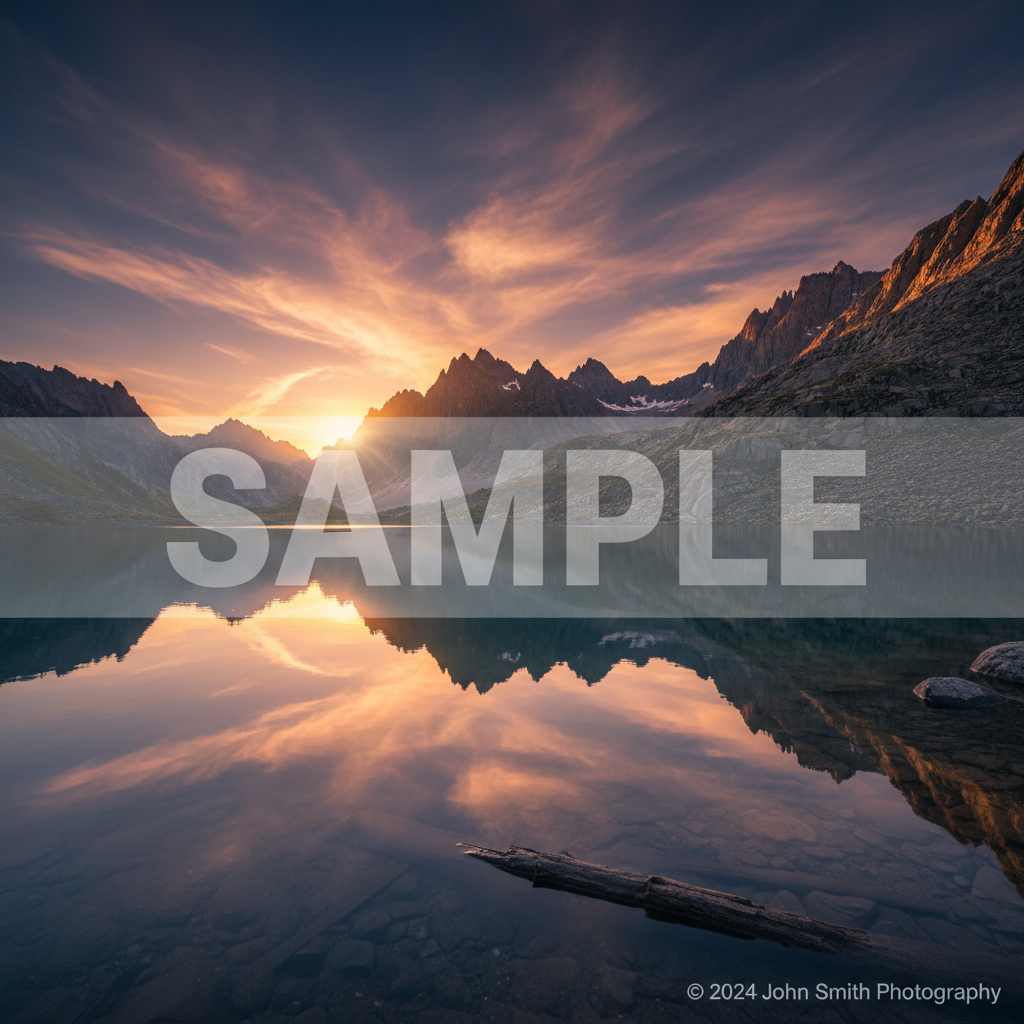
去除水印
移除您拥有版权的图片上的水印和标志。
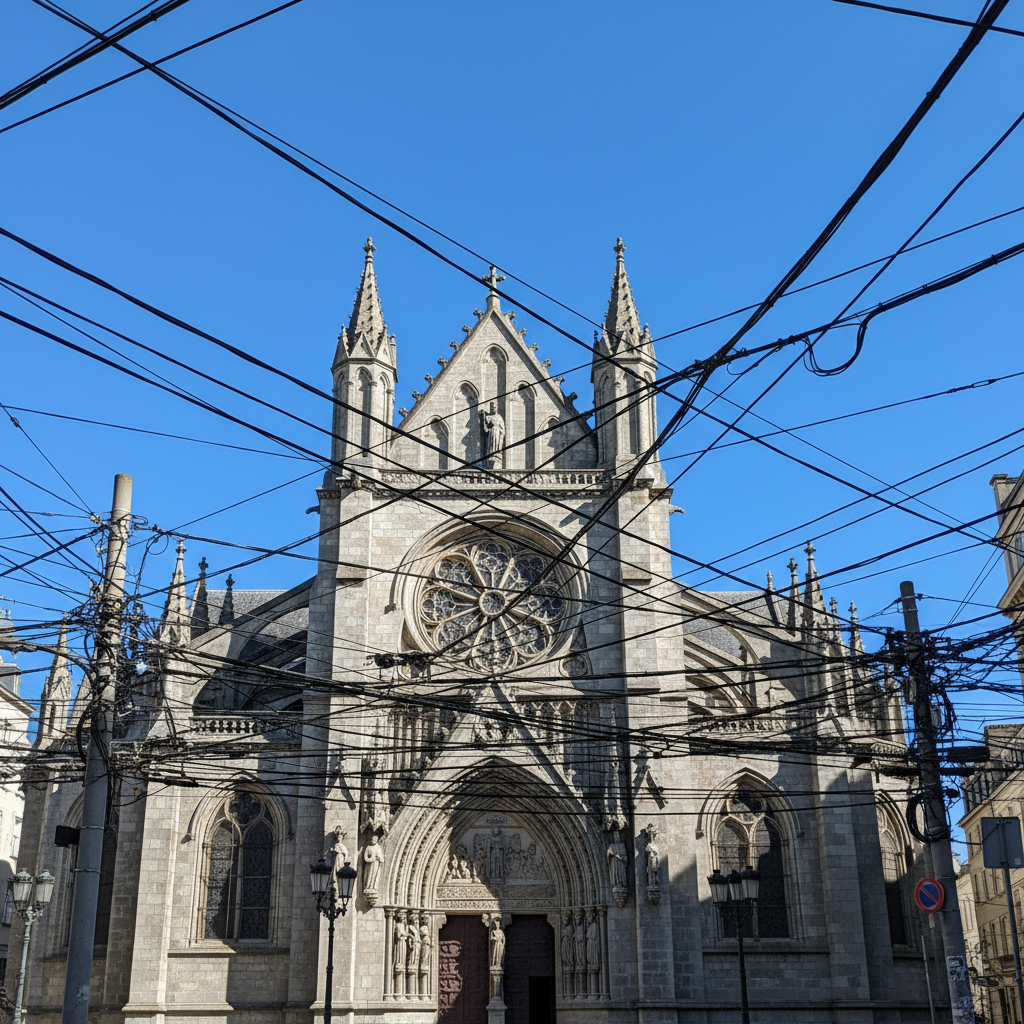
移除电线
移除电缆和电线,清理风景和建筑照片。
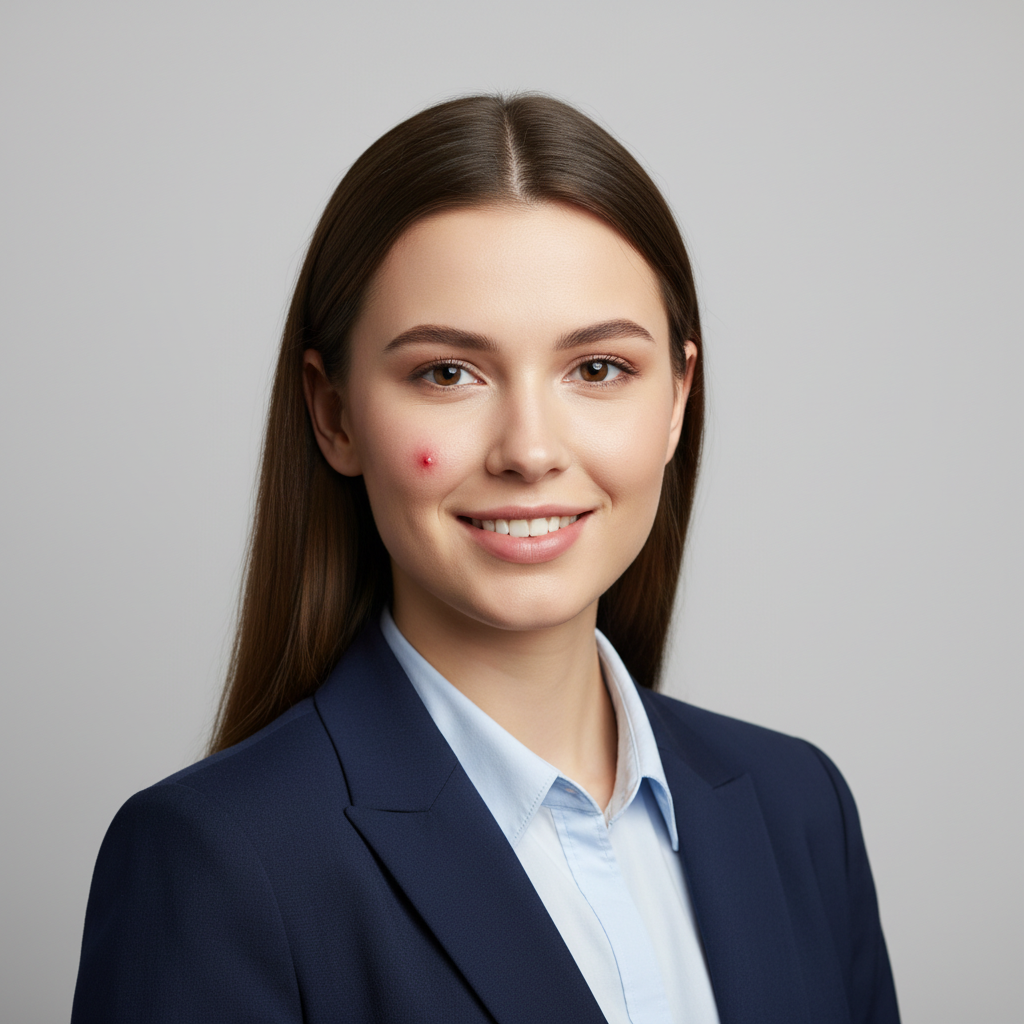
清除瑕疵
修饰人像,移除临时的瑕疵和不完美之处。
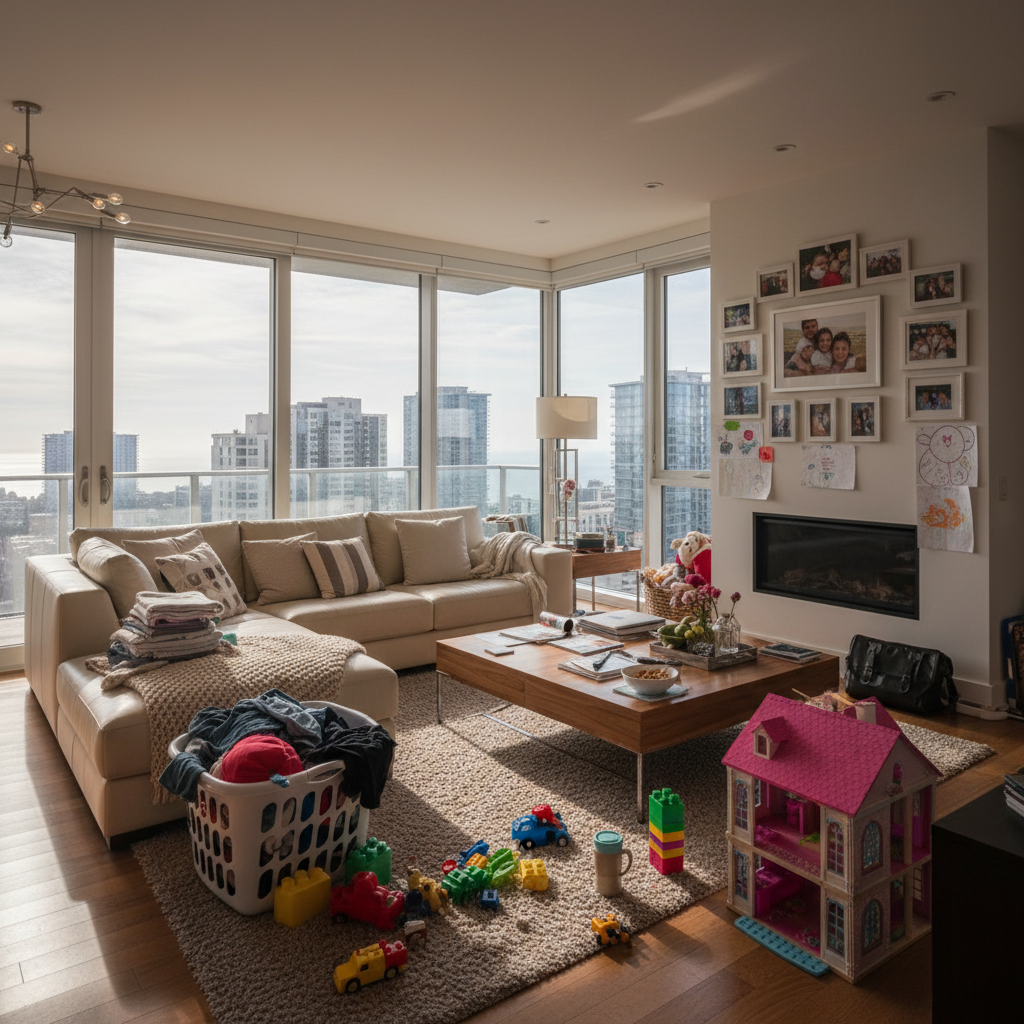
整理房产图
移除房产照片中的私人物品和杂物,用于房源展示。
How Nano Banana 2 Compares to Other Object Removal Tools
See how our AI object remover stacks up against the most popular alternatives
Several AI-powered object removal tools exist, each with different approaches and limitations. Here is how Nano Banana 2 Object Remover compares to the most popular options available today.
Nano Banana 2 vs Cleanup.pictures
Cleanup.pictures offers a simple drag-to-remove interface and produces decent results on small objects. However, it limits free users to low-resolution output (720p) and requires a Pro subscription ($5/month) for full-resolution downloads. Nano Banana 2 delivers full-resolution results with a flexible credit system — no monthly commitment required. Both tools handle simple removals well, but Nano Banana 2 uses the advanced LaMa inpainting model for more natural background reconstruction on complex scenes.
Nano Banana 2 vs Adobe Generative Remove
Adobe's Generative Remove (in Photoshop and Firefly) uses generative AI to fill removed areas, producing impressive results for complex scenes. However, it requires an Adobe Creative Cloud subscription ($22.99/month for Photoshop) and works best within the full Photoshop environment. Nano Banana 2 provides comparable AI-powered object removal through a simple browser-based interface at a fraction of the cost, making professional results accessible to anyone without expensive software.
Nano Banana 2 vs Inpaint Online
Inpaint Online is one of the earliest object removal tools and offers basic inpainting capabilities for free. While it handles simple removals on uniform backgrounds, it struggles with complex textures and detailed areas. Nano Banana 2 uses next-generation AI inpainting that intelligently reconstructs backgrounds with matching textures, lighting, and perspective — producing results that look natural even in challenging scenarios like removing people from busy street scenes.
Nano Banana 2 Object Remover combines the power of advanced LaMa AI with a simple brush-based interface. No subscriptions, no software downloads — just upload, brush, and download your clean image at full resolution.
Tips & Best Practices for Object Removal
Get the cleanest results from our AI object remover with these expert tips
Match Brush Size to the Object
Use a larger brush for big objects and a smaller brush for fine details. Matching the brush size to the object helps the AI understand exactly what to remove and what to preserve, resulting in cleaner edges.
Zoom In for Precision
Zoom into the area you want to edit before brushing. This gives you much better control over exactly which pixels are marked for removal, especially important for objects near important elements you want to keep.
Cover the Entire Object
Make sure your brush strokes fully cover the entire object you want to remove, including its shadow. Partial coverage can leave visible remnants. It is better to slightly over-brush than to miss parts of the object.
Start with Small Objects
If you are new to object removal, start with smaller objects like blemishes, power lines, or small distracting elements. This helps you get a feel for how the AI works before tackling larger, more complex removals.
Try Multiple Passes for Complex Removals
For large or complex objects, consider removing them in stages rather than all at once. Remove part of the object, download the result, then re-upload and remove the rest. This often produces more natural results.
Clean Surrounding Area Matters
The AI uses surrounding pixels to fill the removed area. If the area around the object is clean and detailed, the reconstruction will be more convincing. Avoid removing objects that take up most of the image.
Use High-Resolution Source Images
Higher resolution images give the AI more pixel data to work with, resulting in better background reconstruction. The AI can pick up more texture and pattern detail from high-res sources to fill the gap naturally.
Review at Full Size Before Downloading
Always zoom in to inspect the removal area at full resolution before downloading. Check for any artifacts, color mismatches, or unnatural patterns. A quick review ensures professional-quality results every time.
Clean up your product photos, then place them in professional scenes — no photographer needed.
探索更多 AI 工具
发现我们完整的 AI 图片编辑工具套件
物体移除常见问题
关于图片物体移除您需要了解的一切
还有更多问题? 联系我们
Try our free AI image generator for text-to-image, editing, and more.